> ## Documentation Index
> Fetch the complete documentation index at: https://docs.cura.so/llms.txt
> Use this file to discover all available pages before exploring further.
# Adding Services and prices
> Services tell your AI exactly what you offer and what it costs — so it quotes the right price, describes treatments accurately, and requests the right booking.
Services tell your AI exactly what you offer and what it costs — so it quotes the right price, describes treatments accurately, and requests the right booking.
By the end of this guide, you'll have a service menu the AI can use to answer "how much is…?" questions and to take booking requests.
## Before you begin
* You'll need **Admin** or **Manager** access to the workspace you're editing.
* Make sure you're in the right **workspace** — Services are per-workspace, so each location keeps its own menu and prices.
* Have your treatment names, descriptions, and current prices ready.
When a customer asks about a treatment or price, the AI quotes from your Services — not a guess. Accurate Services mean accurate quotes and smoother bookings.
***
* Open the **workspace** you're editing and go to its **Services** tab.
* Confirm you're in the correct workspace.
For each treatment, fill in:
* **Title:** the name customers recognise, e.g. *"PRP Hair Treatment"*.
* **Description:** what it includes, in plain language. This helps the AI explain the service and answer follow-up questions.
* **Price:** the standard price.
* **Promo price (optional):** add this if the service is currently discounted, and the AI can quote the promo instead.
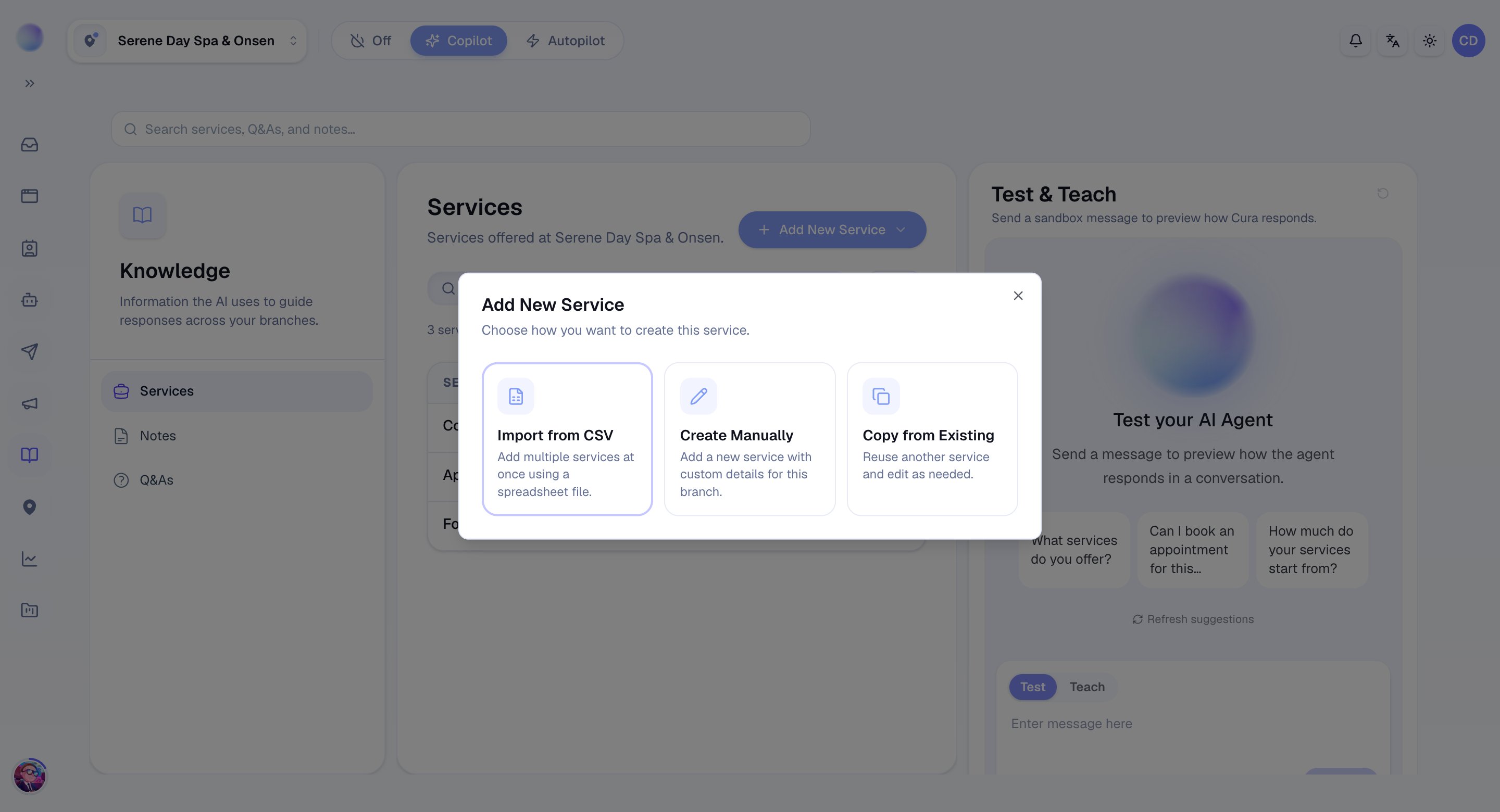 Your service is saved. The AI can now quote it and take booking requests for it.
* Add every treatment you want the AI to discuss or book.
* Keep descriptions short and specific — enough for the AI to answer "what's included?" without over-promising.
* **Update the price** whenever it changes. The AI quotes whatever is saved, so stale prices lead to wrong quotes.
* **Use the promo price** for limited-time offers, then clear it when the promotion ends.
* Each service can be set **active** or **inactive** — switch one off to hide it from the AI without deleting it.
The AI quotes exactly what's in Services. If a price is out of date here, the AI will confidently quote the wrong number — so review your menu whenever prices change.
***
## Troubleshooting
* **The AI quotes the wrong price.** Check the service's price (and promo price) in the correct workspace, and make sure the service is **active**.
* **The AI doesn't mention a treatment.** Confirm it exists as an active service in this workspace, with a clear title and description.
***
### Related articles
* [Build your Knowledge Base](/ai-agent/build-your-knowledge-base)
* [Adding FAQs](/ai-agent/adding-faqs)
* [How your AI agent works](/ai-agent/how-your-ai-agent-works)
Your service is saved. The AI can now quote it and take booking requests for it.
* Add every treatment you want the AI to discuss or book.
* Keep descriptions short and specific — enough for the AI to answer "what's included?" without over-promising.
* **Update the price** whenever it changes. The AI quotes whatever is saved, so stale prices lead to wrong quotes.
* **Use the promo price** for limited-time offers, then clear it when the promotion ends.
* Each service can be set **active** or **inactive** — switch one off to hide it from the AI without deleting it.
The AI quotes exactly what's in Services. If a price is out of date here, the AI will confidently quote the wrong number — so review your menu whenever prices change.
***
## Troubleshooting
* **The AI quotes the wrong price.** Check the service's price (and promo price) in the correct workspace, and make sure the service is **active**.
* **The AI doesn't mention a treatment.** Confirm it exists as an active service in this workspace, with a clear title and description.
***
### Related articles
* [Build your Knowledge Base](/ai-agent/build-your-knowledge-base)
* [Adding FAQs](/ai-agent/adding-faqs)
* [How your AI agent works](/ai-agent/how-your-ai-agent-works)