> ## Documentation Index
> Fetch the complete documentation index at: https://docs.cura.so/llms.txt
> Use this file to discover all available pages before exploring further.
# Copilot mode: Cura drafts, you approve
> Let Cura write the reply and hand it to you to review, edit, and send — nothing reaches the customer until you approve it. This is how you build trust with your AI on day one.
Copilot mode is the "AI assists, you stay in control" setting. When it's on, Cura reads the incoming customer message and **writes a reply for you** — but it never sends it. The draft lands in your **Reply** box, ready for you to read, tweak, and send with one click. Nothing goes to the customer until you approve it.
It's the perfect way to start: you get the speed of an AI that already knows your services and FAQs, without handing over the keys. As you see the drafts get good, you can flip to full **Autopilot** whenever you're ready.
## Before you begin
* Cura's **Mode** is set for your whole workspace — one setting covers every channel and every conversation. (Per-channel controls are on the way, but today it's one switch for all.)
* Changing the **Mode** is a manager action. If you don't see the control, ask an admin on your team.
* Copilot mode needs something to draft from — a customer has to have sent a message first.
***
Find the **Mode** control — it sits in the top bar next to your workspace name, and also on your **AI Settings** page. There are three choices:
* **Off** — Cura is paused. Customers get no AI replies on any channel.
* **Copilot** — Cura drafts replies for your team to review. Nothing sends without your approval.
* **Autopilot** — Cura replies to customers automatically when it's confident.
Pick **Copilot**.
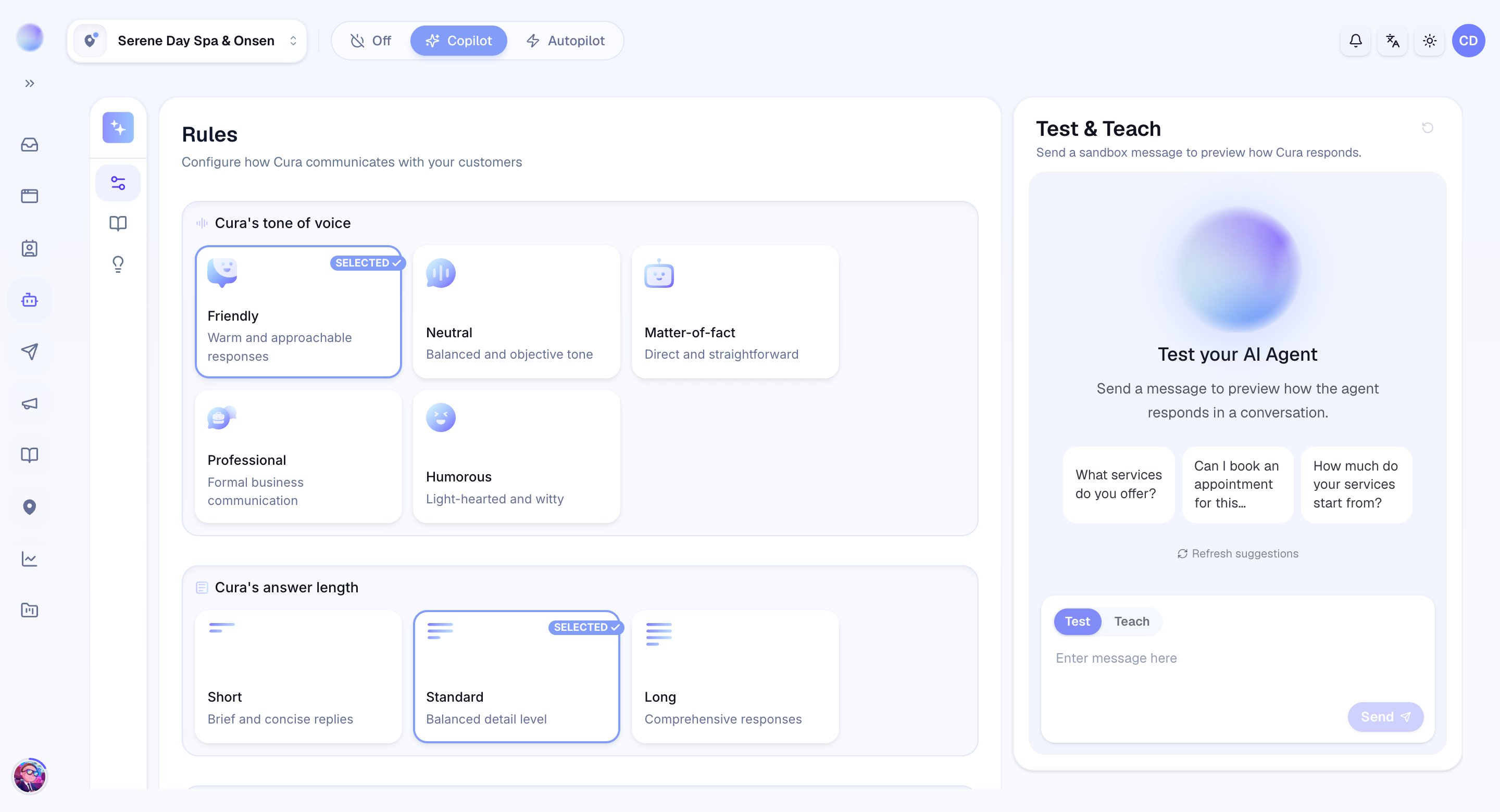 Copilot is now active for your whole workspace. Cura will start drafting instead of sending.
When a customer writes in on any connected channel, Cura reads it and writes a reply in the background. A moment later, the draft appears **pre-filled in the Reply box** of that conversation in your **Inbox** — as editable text, exactly where you'd type your own answer.
Above the box you'll see small chips showing **which Service or FAQ** Cura drew on, so you can trust where the answer came from at a glance.
The draft is only ever placed in **Reply** — never in a **Private Note**. And it sits quietly in the Reply box until you act; the customer sees nothing yet.
Read the draft. If it's good as-is, do nothing. If you want to change a word, a price, or the tone, just edit the text like any message — the moment you start typing, a small **edited** pill appears so you know you've changed it from Cura's original.
If a customer sends a follow-up while you're reading, Cura writes a fresh draft for the newer message and swaps it in. You'll always be approving a reply to the latest thing they said.
* **Send:** click **Send**. The reply goes straight to the customer in their own channel, just like any message you write yourself.
* **Don't send:** clear the box or switch away. Nothing is delivered, and you can reply in your own words instead.
Only the messages you approve ever reach a customer. That's the whole promise of Copilot mode.
When you edit a draft before sending, Cura notices. After the message goes out, you may see a gentle **Teach Cura** prompt on that reply — a one-tap way to save your change so the next draft is closer to how you'd say it. Over time, the drafts need fewer edits.
## Need a draft on the spot?
Even when Cura isn't in Copilot mode, you can ask for a one-off draft in any conversation. Look for the **AI Draft** button in the composer — press it and Cura writes a suggested reply into your Reply box for you to review and send. It's handy when the **Mode** is **Off** or **Autopilot** but you'd still like a hand with a tricky message.
There's a short cooldown between AI Draft requests, so give it a few seconds before asking for another.
## Copilot vs. Autopilot vs. Off
* **Copilot** — Cura drafts, you approve every reply. Best for building trust and for high-stakes conversations.
* **Autopilot** — Cura replies on its own when confident. Best once you've seen the drafts and want hands-off speed. This is the opposite of draft mode: replies auto-send.
* **Off** — Cura stays quiet. Every conversation waits for a human.
A common path: start in **Copilot** for a week or two, watch the drafts, teach Cura where it's off, then switch to **Autopilot** once you trust it.
## Troubleshooting
* **No draft appeared.** Copilot only drafts after a customer has sent a message. Check the **Mode** is set to **Copilot**, and that the customer's message actually arrived in the conversation.
* **I can't change the Mode.** Switching **Mode** is a manager action — ask an admin on your team to change it, or to give you access.
* **The draft vanished.** If the customer sent a follow-up, Cura replaces the old draft with a fresh one for the newer message. Scroll to the latest message and the current draft will be there.
* **I want to reply in my own words.** Just clear the box and type — sending your own text works exactly as normal, and Cura's draft is set aside.
***
### Related articles
* [Replying to a customer](/inbox/replying-to-a-customer)
* [Taking over from the AI (and handing back)](/inbox/taking-over-from-the-ai)
* [How your AI agent works](/ai-agent/how-your-ai-agent-works)
* [The Master AI switch and per-conversation control](/ai-agent/master-ai-switch)
* [Escalation: when the AI hands off to a human](/ai-agent/escalation-handoff)
Copilot is now active for your whole workspace. Cura will start drafting instead of sending.
When a customer writes in on any connected channel, Cura reads it and writes a reply in the background. A moment later, the draft appears **pre-filled in the Reply box** of that conversation in your **Inbox** — as editable text, exactly where you'd type your own answer.
Above the box you'll see small chips showing **which Service or FAQ** Cura drew on, so you can trust where the answer came from at a glance.
The draft is only ever placed in **Reply** — never in a **Private Note**. And it sits quietly in the Reply box until you act; the customer sees nothing yet.
Read the draft. If it's good as-is, do nothing. If you want to change a word, a price, or the tone, just edit the text like any message — the moment you start typing, a small **edited** pill appears so you know you've changed it from Cura's original.
If a customer sends a follow-up while you're reading, Cura writes a fresh draft for the newer message and swaps it in. You'll always be approving a reply to the latest thing they said.
* **Send:** click **Send**. The reply goes straight to the customer in their own channel, just like any message you write yourself.
* **Don't send:** clear the box or switch away. Nothing is delivered, and you can reply in your own words instead.
Only the messages you approve ever reach a customer. That's the whole promise of Copilot mode.
When you edit a draft before sending, Cura notices. After the message goes out, you may see a gentle **Teach Cura** prompt on that reply — a one-tap way to save your change so the next draft is closer to how you'd say it. Over time, the drafts need fewer edits.
## Need a draft on the spot?
Even when Cura isn't in Copilot mode, you can ask for a one-off draft in any conversation. Look for the **AI Draft** button in the composer — press it and Cura writes a suggested reply into your Reply box for you to review and send. It's handy when the **Mode** is **Off** or **Autopilot** but you'd still like a hand with a tricky message.
There's a short cooldown between AI Draft requests, so give it a few seconds before asking for another.
## Copilot vs. Autopilot vs. Off
* **Copilot** — Cura drafts, you approve every reply. Best for building trust and for high-stakes conversations.
* **Autopilot** — Cura replies on its own when confident. Best once you've seen the drafts and want hands-off speed. This is the opposite of draft mode: replies auto-send.
* **Off** — Cura stays quiet. Every conversation waits for a human.
A common path: start in **Copilot** for a week or two, watch the drafts, teach Cura where it's off, then switch to **Autopilot** once you trust it.
## Troubleshooting
* **No draft appeared.** Copilot only drafts after a customer has sent a message. Check the **Mode** is set to **Copilot**, and that the customer's message actually arrived in the conversation.
* **I can't change the Mode.** Switching **Mode** is a manager action — ask an admin on your team to change it, or to give you access.
* **The draft vanished.** If the customer sent a follow-up, Cura replaces the old draft with a fresh one for the newer message. Scroll to the latest message and the current draft will be there.
* **I want to reply in my own words.** Just clear the box and type — sending your own text works exactly as normal, and Cura's draft is set aside.
***
### Related articles
* [Replying to a customer](/inbox/replying-to-a-customer)
* [Taking over from the AI (and handing back)](/inbox/taking-over-from-the-ai)
* [How your AI agent works](/ai-agent/how-your-ai-agent-works)
* [The Master AI switch and per-conversation control](/ai-agent/master-ai-switch)
* [Escalation: when the AI hands off to a human](/ai-agent/escalation-handoff)