> ## Documentation Index
> Fetch the complete documentation index at: https://docs.cura.so/llms.txt
> Use this file to discover all available pages before exploring further.
# Segments
> Segments are pre-built smart views of your contacts that update themselves automatically — so "everyone active this week" or "all my VIPs" is always one click away, with no list to maintain.
Segments are pre-built smart views of your contacts that update themselves automatically — so "everyone active this week" or "all my VIPs" is always one click away, with no list to maintain.
By the end of this guide, you'll know what each Segment shows and how to use them to focus your follow-up on the right people at the right time.
## Before you begin
* You'll need access to the **CRM**.
* That's it — Segments come ready to use; there's nothing to set up.
A **Segment** is automatic — Cura decides who's in it based on a rule, and membership refreshes on its own. A **List** is hand-picked — *you* choose who's in it. Reach for a Segment when the group follows a rule.
***
* Go to the **Segments** view in the CRM. You'll see each Segment as a card with its name and a live count of how many contacts match right now.
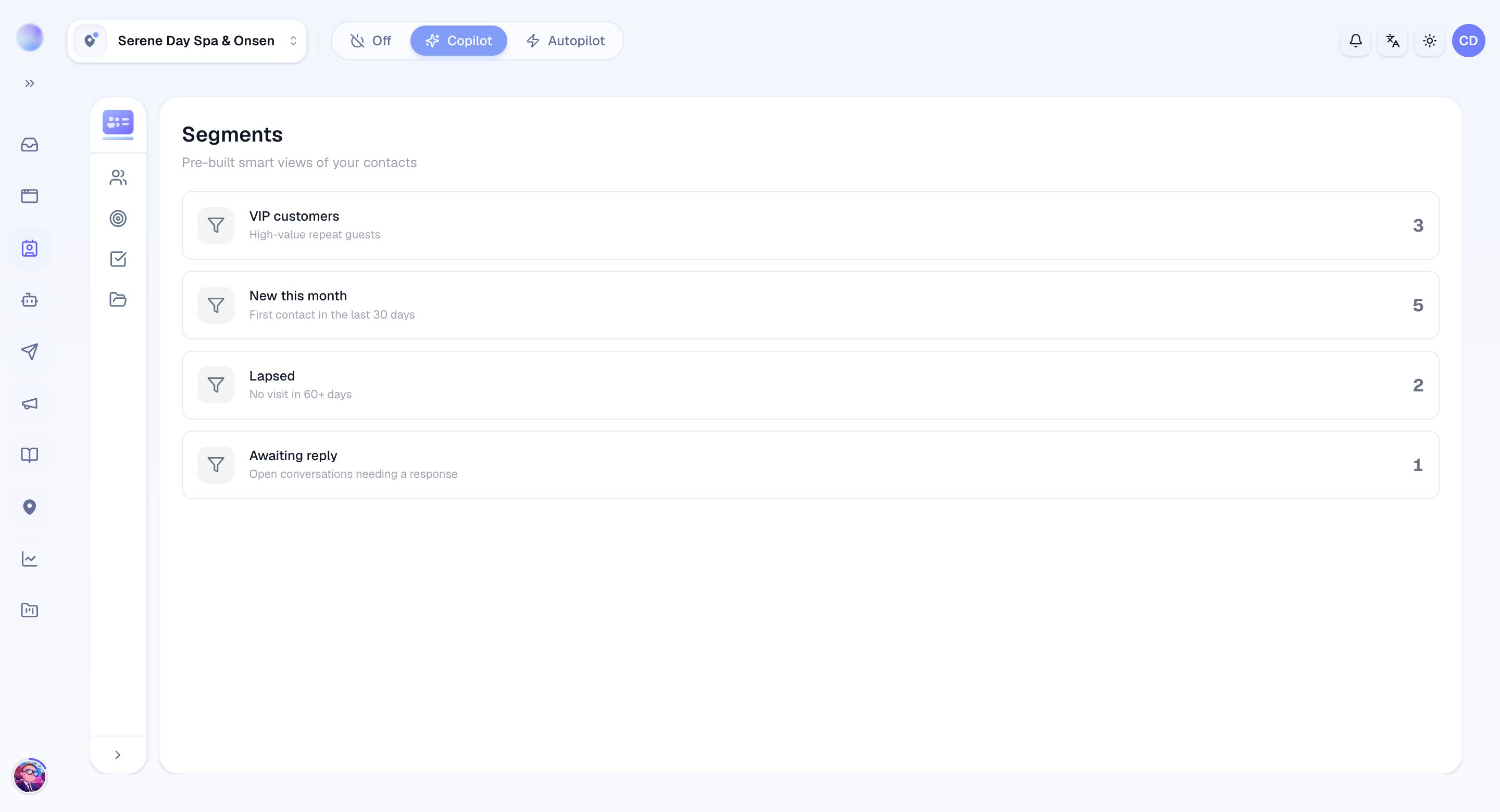 Cura comes with these smart views:
* **Engaged This Week** — contacts with activity in the past 7 days.
* **New This Month** — contacts created in the current month.
* **Dormant Contacts** — no activity in the past 30 days.
* **Has Open Deal** — contacts with at least one active deal.
* **VIP Contacts** — contacts marked as VIP tier.
* **Unassigned** — contacts with no owner.
* **Has Open Task** — contacts with a pending task.
* **Click a Segment** to see the contacts inside it.
* From there, open any contact to follow up, reassign, or move a deal forward.
You can now zero in on a meaningful group instantly — no manual sorting required.
## Putting Segments to work
* Start your day with **Engaged This Week** to catch warm customers.
* Win back **Dormant Contacts** with a check-in message.
* Clear out **Unassigned** so every customer has an owner.
* Prioritize **Has Open Deal** and **Has Open Task** to keep momentum.
Segments react to your contact data. The more consistently you set **tiers**, **owners**, and stages, the sharper Segments like **VIP Contacts** and **Unassigned** become.
***
### Related articles
* [Lists](/crm/lists)
* [Contacts overview](/crm/contacts-overview)
* [Custom attributes, tags, and tiers (VIP / Standard / New)](/crm/custom-attributes-tags-tiers)
* [Deals and your sales pipeline](/crm/deals-and-pipeline)
Cura comes with these smart views:
* **Engaged This Week** — contacts with activity in the past 7 days.
* **New This Month** — contacts created in the current month.
* **Dormant Contacts** — no activity in the past 30 days.
* **Has Open Deal** — contacts with at least one active deal.
* **VIP Contacts** — contacts marked as VIP tier.
* **Unassigned** — contacts with no owner.
* **Has Open Task** — contacts with a pending task.
* **Click a Segment** to see the contacts inside it.
* From there, open any contact to follow up, reassign, or move a deal forward.
You can now zero in on a meaningful group instantly — no manual sorting required.
## Putting Segments to work
* Start your day with **Engaged This Week** to catch warm customers.
* Win back **Dormant Contacts** with a check-in message.
* Clear out **Unassigned** so every customer has an owner.
* Prioritize **Has Open Deal** and **Has Open Task** to keep momentum.
Segments react to your contact data. The more consistently you set **tiers**, **owners**, and stages, the sharper Segments like **VIP Contacts** and **Unassigned** become.
***
### Related articles
* [Lists](/crm/lists)
* [Contacts overview](/crm/contacts-overview)
* [Custom attributes, tags, and tiers (VIP / Standard / New)](/crm/custom-attributes-tags-tiers)
* [Deals and your sales pipeline](/crm/deals-and-pipeline)