> ## Documentation Index
> Fetch the complete documentation index at: https://docs.cura.so/llms.txt
> Use this file to discover all available pages before exploring further.
# A tour of the main navigation
> The main navigation is the menu down the side of Cura — your map to everything the product does.
The main navigation is the menu down the side of Cura — your map to everything the product does. This tour walks you through each area so you always know where to go.
Cura keeps the most-used tools one click away. What you see depends on your role: front-desk staff see the day-to-day essentials, while admins and managers see the setup and reporting areas too. If a section below isn't on your menu, you likely don't have access to it yet — ask your account admin.
***
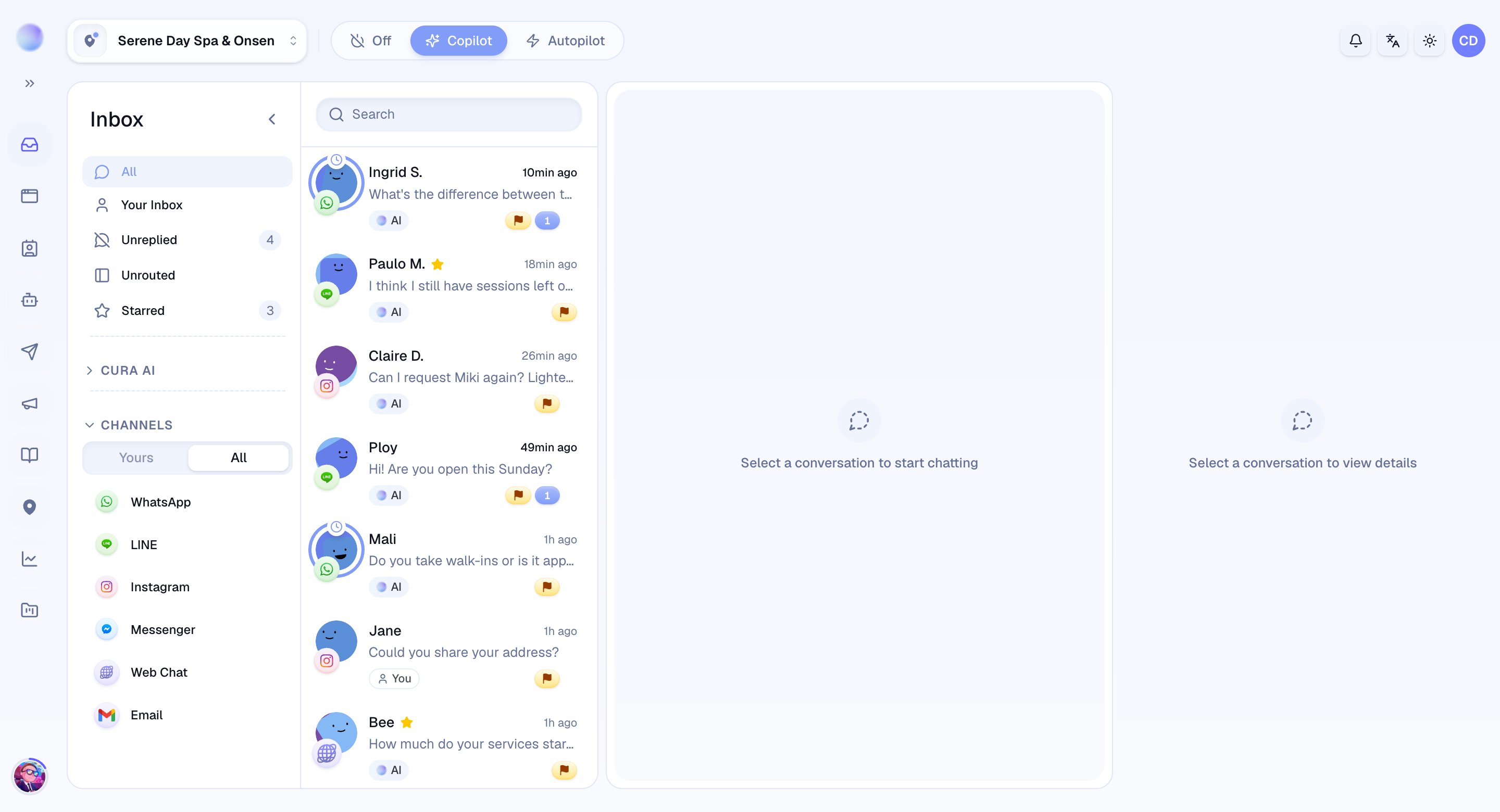
## Inbox
The **Inbox** is where you'll spend most of your day. Every message from every channel lands here in one unified view, so nothing slips through the cracks. Open any conversation to read the history, reply yourself, or take over from the AI.
 ## Bookings
The **Bookings** area shows the appointments your AI and team have made. It's where you confirm, reschedule, and keep track of who's coming in.
## Contacts
**Contacts** is your CRM — a living record of every customer. Each contact gathers their conversations, bookings, and details in one place, so you always have the full picture.
## AI Agent
The **AI** area is the brain of Cura. This is where you teach your AI about your business — your Knowledge Base, FAQs, and Services — set its tone, and decide when it should hand a conversation to a human. (Admins only.)
## Workflows
**Workflows** are your automations: a trigger followed by actions, like sending an appointment reminder or following up with a customer who went quiet. (Admins only.)
## Teams
The **Teams** area is where you organize the people who work alongside your AI and route conversations to the right group. (Admins only.)
## Reports
**Reports** show how things are going — conversation volume, response times, and the outcomes that matter to your business. (Managers and admins.)
## Integrations
**Integrations** is where you connect your messaging channels — LINE, WhatsApp, Instagram, Messenger, Telegram, and a website widget. Connecting a channel lets Cura send and receive messages there. (Admins only.)
## Settings
**Settings** holds the configuration that keeps everything running:
* **Organization** — your top-level company account: its name, description, default language, and escalation contact.
* **Workspaces** — each business or location, with its name, location, timezone, and members.
To invite teammates or change someone's role, open the **profile menu** (your avatar, top-right) and choose **Manage organization**. Member management lives there, not in Settings → Organization. See [Inviting your team](/getting-started/inviting-your-team).
New to Cura? You don't need to learn every area at once. Start in the **Inbox**, and reach for the other sections as you grow. [Getting started with Cura](/getting-started/your-first-day) walks you through the first hour.
***
### Related articles
* [What is Cura?](/getting-started/what-is-cura)
* [Getting started with Cura: your first day](/getting-started/your-first-day)
* [The Inbox explained](/inbox/the-inbox-explained)
## Bookings
The **Bookings** area shows the appointments your AI and team have made. It's where you confirm, reschedule, and keep track of who's coming in.
## Contacts
**Contacts** is your CRM — a living record of every customer. Each contact gathers their conversations, bookings, and details in one place, so you always have the full picture.
## AI Agent
The **AI** area is the brain of Cura. This is where you teach your AI about your business — your Knowledge Base, FAQs, and Services — set its tone, and decide when it should hand a conversation to a human. (Admins only.)
## Workflows
**Workflows** are your automations: a trigger followed by actions, like sending an appointment reminder or following up with a customer who went quiet. (Admins only.)
## Teams
The **Teams** area is where you organize the people who work alongside your AI and route conversations to the right group. (Admins only.)
## Reports
**Reports** show how things are going — conversation volume, response times, and the outcomes that matter to your business. (Managers and admins.)
## Integrations
**Integrations** is where you connect your messaging channels — LINE, WhatsApp, Instagram, Messenger, Telegram, and a website widget. Connecting a channel lets Cura send and receive messages there. (Admins only.)
## Settings
**Settings** holds the configuration that keeps everything running:
* **Organization** — your top-level company account: its name, description, default language, and escalation contact.
* **Workspaces** — each business or location, with its name, location, timezone, and members.
To invite teammates or change someone's role, open the **profile menu** (your avatar, top-right) and choose **Manage organization**. Member management lives there, not in Settings → Organization. See [Inviting your team](/getting-started/inviting-your-team).
New to Cura? You don't need to learn every area at once. Start in the **Inbox**, and reach for the other sections as you grow. [Getting started with Cura](/getting-started/your-first-day) walks you through the first hour.
***
### Related articles
* [What is Cura?](/getting-started/what-is-cura)
* [Getting started with Cura: your first day](/getting-started/your-first-day)
* [The Inbox explained](/inbox/the-inbox-explained)