> ## Documentation Index
> Fetch the complete documentation index at: https://docs.cura.so/llms.txt
> Use this file to discover all available pages before exploring further.
# Sending images, files, and attachments
> By the end of this guide, you'll be able to send photos, videos, and documents to a customer right from the conversation — a price list PDF, a before-and-after photo, a directions screenshot.
By the end of this guide, you'll be able to send photos, videos, and documents to a customer right from the conversation — a price list PDF, a before-and-after photo, a directions screenshot.
Sometimes words aren't enough. **Attachments** let you share exactly what the customer needs to see, delivered straight to their channel.
## Before you begin
* Open a conversation in the **Inbox** where you can reply.
* If the AI is handling the conversation, **take over** first.
***
In the message box, click the **Attach file** button.
* Choose a file from your device.
* You can attach **images**, **videos**, and **files** (such as PDFs and documents).
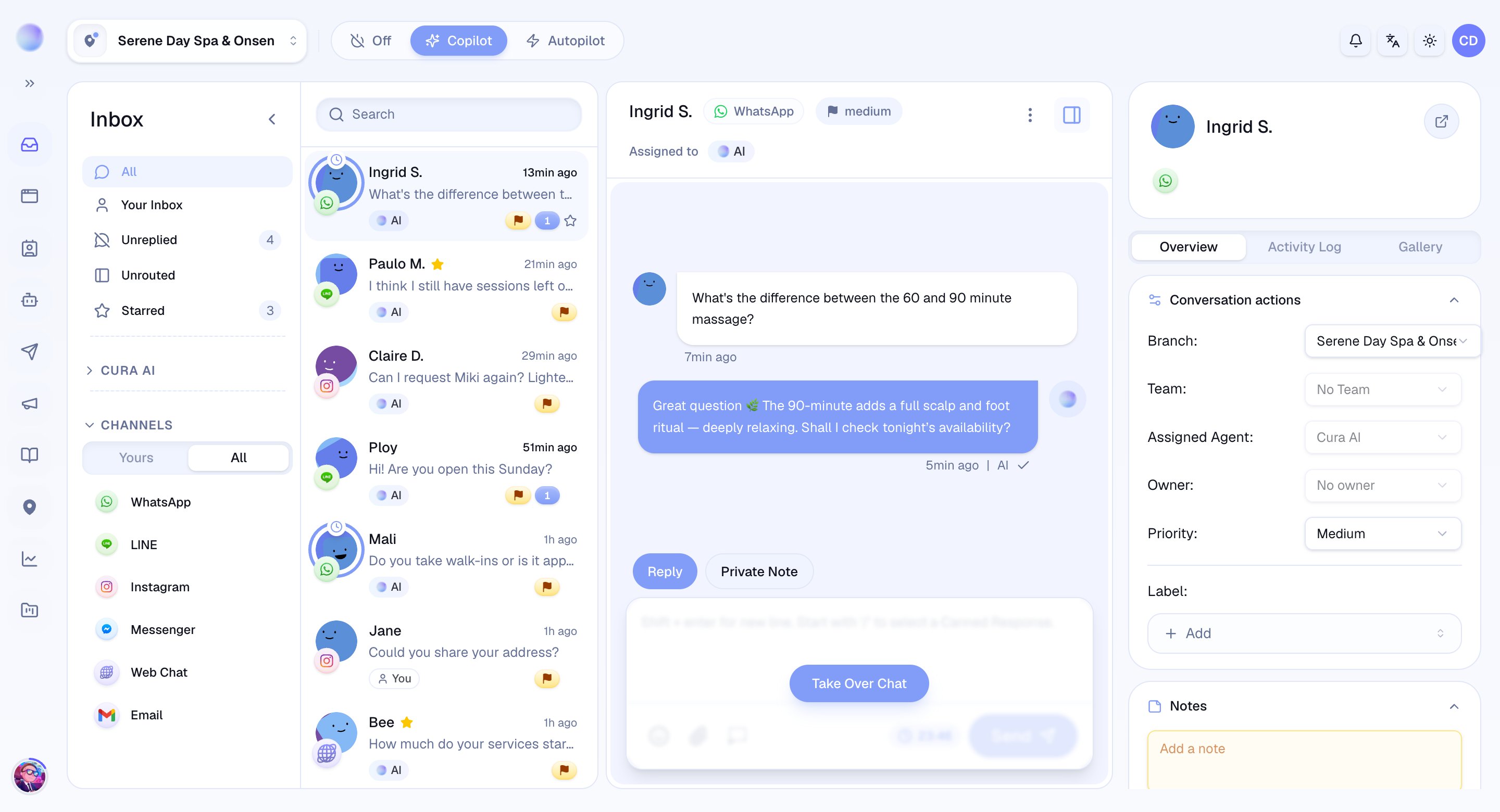 Your selected files appear as previews above the message box before they go anywhere.
* **Add a caption:** type a message alongside the attachment if you'd like.
* **Remove a file:** drop anything you didn't mean to include.
Click **Send**. Your attachments are delivered to the customer in their own channel, right alongside your message.
You've sent your attachment — the customer receives it natively in LINE, Instagram, WhatsApp, or wherever they messaged from.
Each channel sets its own limits on file types and sizes. If a file isn't supported or is too large for that channel, Cura tells you before sending so you can swap it for one that works.
Photos are persuasive. A clear before-and-after or a quick photo of the result is often what turns a "maybe" into a booking.
## Send a LINE sticker
For conversations on **LINE**, you can send a sticker instead of a message.
* Open the **sticker** option in the message box (LINE conversations only) and choose from the available stickers.
* A sticker is sent on its own — it can't be combined with text or an attachment in the same message.
Stickers are a LINE-only feature, so the sticker option only appears on LINE conversations.
## Troubleshooting
* **A file was rejected?** Cura shows the reason — usually an unsupported type or a size over the channel's limit. Try a smaller file or a supported format.
* **Can't attach anything?** Check that you're in **Reply** mode, the conversation is open, and the channel's response window hasn't closed.
***
### Related articles
* [The Inbox explained](/inbox/the-inbox-explained)
* [Replying to a customer](/inbox/replying-to-a-customer)
* [Using saved replies](/inbox/using-saved-replies)
Your selected files appear as previews above the message box before they go anywhere.
* **Add a caption:** type a message alongside the attachment if you'd like.
* **Remove a file:** drop anything you didn't mean to include.
Click **Send**. Your attachments are delivered to the customer in their own channel, right alongside your message.
You've sent your attachment — the customer receives it natively in LINE, Instagram, WhatsApp, or wherever they messaged from.
Each channel sets its own limits on file types and sizes. If a file isn't supported or is too large for that channel, Cura tells you before sending so you can swap it for one that works.
Photos are persuasive. A clear before-and-after or a quick photo of the result is often what turns a "maybe" into a booking.
## Send a LINE sticker
For conversations on **LINE**, you can send a sticker instead of a message.
* Open the **sticker** option in the message box (LINE conversations only) and choose from the available stickers.
* A sticker is sent on its own — it can't be combined with text or an attachment in the same message.
Stickers are a LINE-only feature, so the sticker option only appears on LINE conversations.
## Troubleshooting
* **A file was rejected?** Cura shows the reason — usually an unsupported type or a size over the channel's limit. Try a smaller file or a supported format.
* **Can't attach anything?** Check that you're in **Reply** mode, the conversation is open, and the channel's response window hasn't closed.
***
### Related articles
* [The Inbox explained](/inbox/the-inbox-explained)
* [Replying to a customer](/inbox/replying-to-a-customer)
* [Using saved replies](/inbox/using-saved-replies)