> ## Documentation Index
> Fetch the complete documentation index at: https://docs.cura.so/llms.txt
> Use this file to discover all available pages before exploring further.
# The Inbox explained
> The Inbox is where every customer conversation lives — from every channel, in one place.
The Inbox is where every customer conversation lives — from every channel, in one place. It's the screen your team will spend most of its time in.
Instead of juggling the LINE app, Instagram DMs, WhatsApp, and Messenger in separate tabs, Cura pulls every conversation into a single, organized view. You can see what the AI is handling, jump in when you want to, and keep everything tidy with filters, labels, and assignments.
***
## One list, every channel
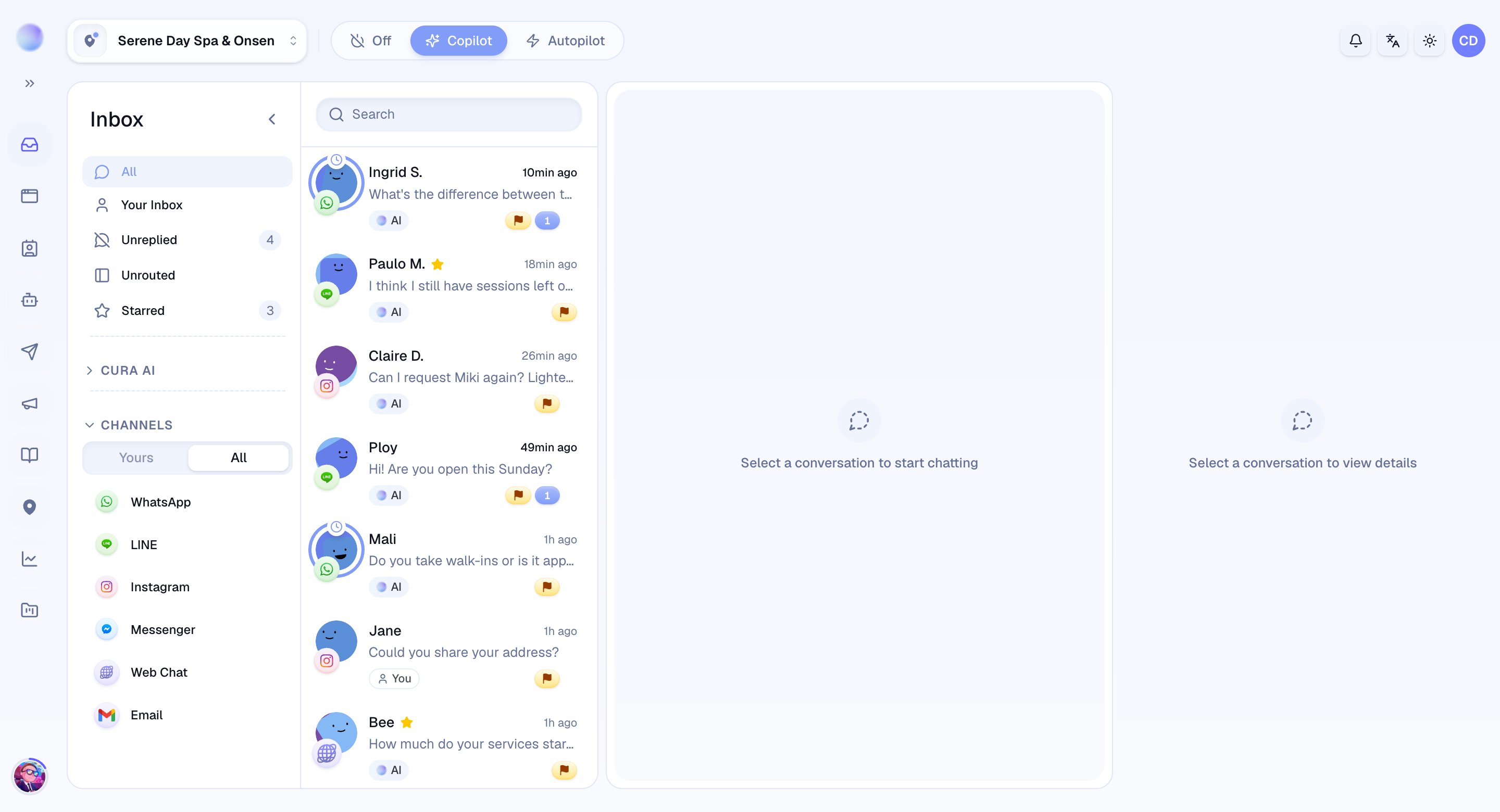
The left side of the Inbox is your **conversation list** — every thread, newest activity first, with the channel each one came from marked clearly. A quick glance tells you who's waiting, who the AI is handling, and who needs a person.
 ## Filters keep you focused
You rarely want *every* conversation at once. Filters narrow the list to what matters right now:
* **All** — every open conversation.
* **Your Inbox** — conversations you're handling or own.
* **Unreplied** — conversations waiting on a reply.
* **Starred** — conversations you've flagged to come back to.
* **Unrouted** — open conversations not yet assigned to a branch (visible to admins and managers).
A separate **Cura AI** section filters by what the AI is doing: **All AI**, **Booked** (led to an appointment), **Routed**, and **Abandoned**.
You can also filter by channel and by team or branch to see just one slice of the business.
## See who's in control: AI or human
Every conversation is handled by either **your AI** or **a person** — and the Inbox always shows which. When the AI is replying, you'll see it clearly marked. The moment you want to step in, you **take over** and the AI steps aside; hand it back when you're done and the AI resumes.
Taking over is instant and per-conversation. It never turns the AI off for your other conversations or channels.
## The conversation view
Open any conversation to see the full message history, the customer's details, and everything you need to respond:
* **Reply** in the customer's channel directly from Cura.
* **Saved replies** — insert reusable answers in a click.
* **Attachments** — send images, files, and documents.
* **Private notes** — leave context for teammates that the customer never sees.
## Organize as you go
Keep the Inbox manageable as volume grows:
* **Labels** — tag conversations by topic, campaign, or anything you like.
* **Priority** — mark conversations from *low* to *urgent*.
* **Assign** — hand a conversation to a specific teammate.
* **Resolve & snooze** — close out finished conversations, or snooze one to set it aside. Reopen anytime.
Build a habit of resolving conversations once they're done. A clean Inbox makes the **Unreplied** filter genuinely mean "needs attention."
***
### Related articles
* [Replying to a customer](/inbox/replying-to-a-customer)
* [Taking over from the AI (and handing back)](/inbox/taking-over-from-the-ai)
* [Using saved replies](/inbox/using-saved-replies)
## Filters keep you focused
You rarely want *every* conversation at once. Filters narrow the list to what matters right now:
* **All** — every open conversation.
* **Your Inbox** — conversations you're handling or own.
* **Unreplied** — conversations waiting on a reply.
* **Starred** — conversations you've flagged to come back to.
* **Unrouted** — open conversations not yet assigned to a branch (visible to admins and managers).
A separate **Cura AI** section filters by what the AI is doing: **All AI**, **Booked** (led to an appointment), **Routed**, and **Abandoned**.
You can also filter by channel and by team or branch to see just one slice of the business.
## See who's in control: AI or human
Every conversation is handled by either **your AI** or **a person** — and the Inbox always shows which. When the AI is replying, you'll see it clearly marked. The moment you want to step in, you **take over** and the AI steps aside; hand it back when you're done and the AI resumes.
Taking over is instant and per-conversation. It never turns the AI off for your other conversations or channels.
## The conversation view
Open any conversation to see the full message history, the customer's details, and everything you need to respond:
* **Reply** in the customer's channel directly from Cura.
* **Saved replies** — insert reusable answers in a click.
* **Attachments** — send images, files, and documents.
* **Private notes** — leave context for teammates that the customer never sees.
## Organize as you go
Keep the Inbox manageable as volume grows:
* **Labels** — tag conversations by topic, campaign, or anything you like.
* **Priority** — mark conversations from *low* to *urgent*.
* **Assign** — hand a conversation to a specific teammate.
* **Resolve & snooze** — close out finished conversations, or snooze one to set it aside. Reopen anytime.
Build a habit of resolving conversations once they're done. A clean Inbox makes the **Unreplied** filter genuinely mean "needs attention."
***
### Related articles
* [Replying to a customer](/inbox/replying-to-a-customer)
* [Taking over from the AI (and handing back)](/inbox/taking-over-from-the-ai)
* [Using saved replies](/inbox/using-saved-replies)