> ## Documentation Index
> Fetch the complete documentation index at: https://docs.cura.so/llms.txt
> Use this file to discover all available pages before exploring further.
# How channels work in Cura
> A channel is a messaging platform you connect to Cura — LINE, WhatsApp, Instagram, Messenger, Telegram, or a chat widget on your website.
A **channel** is a messaging platform you connect to Cura — LINE, WhatsApp, Instagram, Messenger, Telegram, or a chat widget on your website. Once connected, every message your customers send flows into one place, ready for your AI to answer.
The goal is simple: no more jumping between apps. Whether a customer reaches you on LINE or Instagram, the conversation lands in your Cura **Inbox**, and your AI can reply on the same channel the customer used.
***
## One Inbox for every channel
When you connect a channel, Cura creates a dedicated inbox for it. All inboxes feed the unified **Inbox** view, so your team works from a single screen instead of switching between LINE, Instagram, and the rest.
Each conversation stays tagged with the channel it came from, and replies always go back out on that same channel.
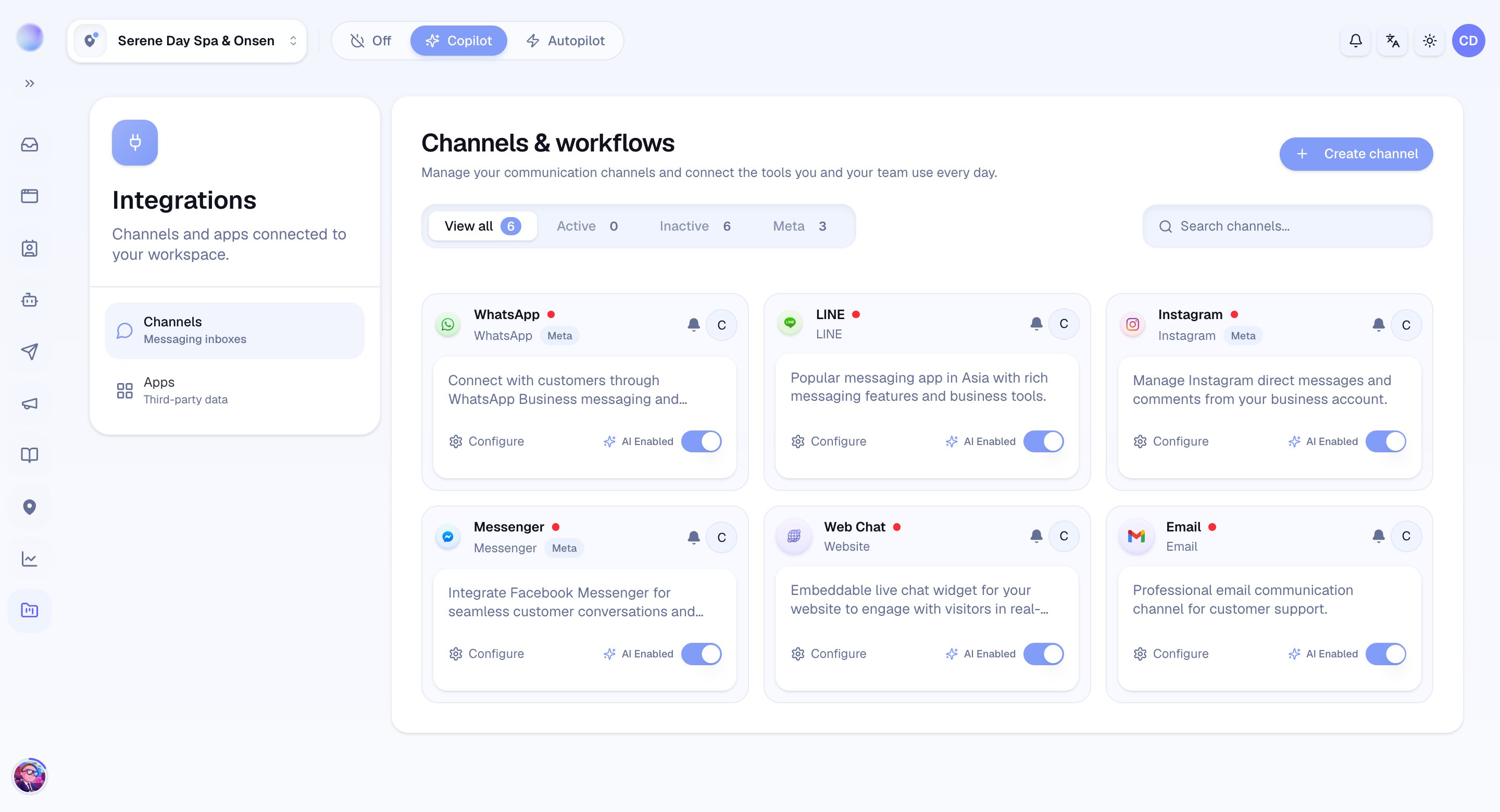 ## The channels you can connect
Cura supports six live channels for customers, each connected in its own way:
* **LINE** — connect your LINE Official Account with credentials from the LINE Developers console.
* **Instagram, Facebook Messenger, and WhatsApp** — connected through Meta, the company behind all three. You sign in with your Facebook/Meta business account and grant Cura access.
* **Telegram** — connected with a bot token from Telegram's BotFather.
* **Website** — an embeddable chat widget you add to your own site.
Each channel connects differently because each platform works differently. The how-to guide for each one walks you through its exact steps.
## How a message travels
When a customer messages one of your connected channels, the platform notifies Cura (this is called a **webhook**). Cura records the message, opens or updates the **conversation**, and — if the AI is switched on for that channel — drafts and sends a reply back through the same platform.
You can step in at any time with **Take over** (a human replying instead of the AI), then hand the conversation back when you're done.
## Settings live per channel
Every channel has its own settings, so you can treat your busy LINE account differently from a quieter Telegram bot:
* **Master AI** — turn the AI on or off for that one channel.
* **AI schedule** — let the AI answer only during business hours.
* **Owner** — the team member responsible for the channel.
* **Notification subscribers** — who gets pinged when a new message arrives.
👉 See [Per-channel settings](/setting-up-cura/per-channel-settings) for the full walkthrough.
## Disconnecting is reversible
Removing a channel **archives** it rather than deleting it. The channel stops receiving messages and its open conversations are wrapped up, but the history stays intact — and you can reconnect later.
👉 See [Archiving and removing a channel](/setting-up-cura/archiving-a-channel) for how that works.
Start with the one channel your customers use most. You can always add the others later — there's no need to connect everything on day one.
***
### Related articles
* [Connect LINE OA](/setting-up-cura/connect-line-oa)
* [Per-channel settings (owner, notifications, AI schedule)](/setting-up-cura/per-channel-settings)
* [Archiving and removing a channel](/setting-up-cura/archiving-a-channel)
* [Getting started with Cura: your first day](/getting-started/your-first-day)
## The channels you can connect
Cura supports six live channels for customers, each connected in its own way:
* **LINE** — connect your LINE Official Account with credentials from the LINE Developers console.
* **Instagram, Facebook Messenger, and WhatsApp** — connected through Meta, the company behind all three. You sign in with your Facebook/Meta business account and grant Cura access.
* **Telegram** — connected with a bot token from Telegram's BotFather.
* **Website** — an embeddable chat widget you add to your own site.
Each channel connects differently because each platform works differently. The how-to guide for each one walks you through its exact steps.
## How a message travels
When a customer messages one of your connected channels, the platform notifies Cura (this is called a **webhook**). Cura records the message, opens or updates the **conversation**, and — if the AI is switched on for that channel — drafts and sends a reply back through the same platform.
You can step in at any time with **Take over** (a human replying instead of the AI), then hand the conversation back when you're done.
## Settings live per channel
Every channel has its own settings, so you can treat your busy LINE account differently from a quieter Telegram bot:
* **Master AI** — turn the AI on or off for that one channel.
* **AI schedule** — let the AI answer only during business hours.
* **Owner** — the team member responsible for the channel.
* **Notification subscribers** — who gets pinged when a new message arrives.
👉 See [Per-channel settings](/setting-up-cura/per-channel-settings) for the full walkthrough.
## Disconnecting is reversible
Removing a channel **archives** it rather than deleting it. The channel stops receiving messages and its open conversations are wrapped up, but the history stays intact — and you can reconnect later.
👉 See [Archiving and removing a channel](/setting-up-cura/archiving-a-channel) for how that works.
Start with the one channel your customers use most. You can always add the others later — there's no need to connect everything on day one.
***
### Related articles
* [Connect LINE OA](/setting-up-cura/connect-line-oa)
* [Per-channel settings (owner, notifications, AI schedule)](/setting-up-cura/per-channel-settings)
* [Archiving and removing a channel](/setting-up-cura/archiving-a-channel)
* [Getting started with Cura: your first day](/getting-started/your-first-day)