> ## Documentation Index
> Fetch the complete documentation index at: https://docs.cura.so/llms.txt
> Use this file to discover all available pages before exploring further.
# Notifications and push alerts
> Cura can send a push alert to your device the moment something needs you — a new message, a handoff, or an escalation.
Cura can send a push alert to your device the moment something needs you — a new message, a handoff, or an escalation. This guide shows you how to turn push notifications on so you never miss a customer.
By the end, you'll have enabled web push notifications on the devices you use for Cura.
## Before you begin
* You'll need to open Cura in a supported web browser on the device you want alerts on.
* Your browser will ask permission to show notifications — you'll need to **Allow** it.
Cura uses **web push notifications**, which are delivered through your browser. You enable them per device, so turn them on for each phone, tablet, or computer you use to handle conversations.
***
* Open Cura on the device you want to be alerted on.
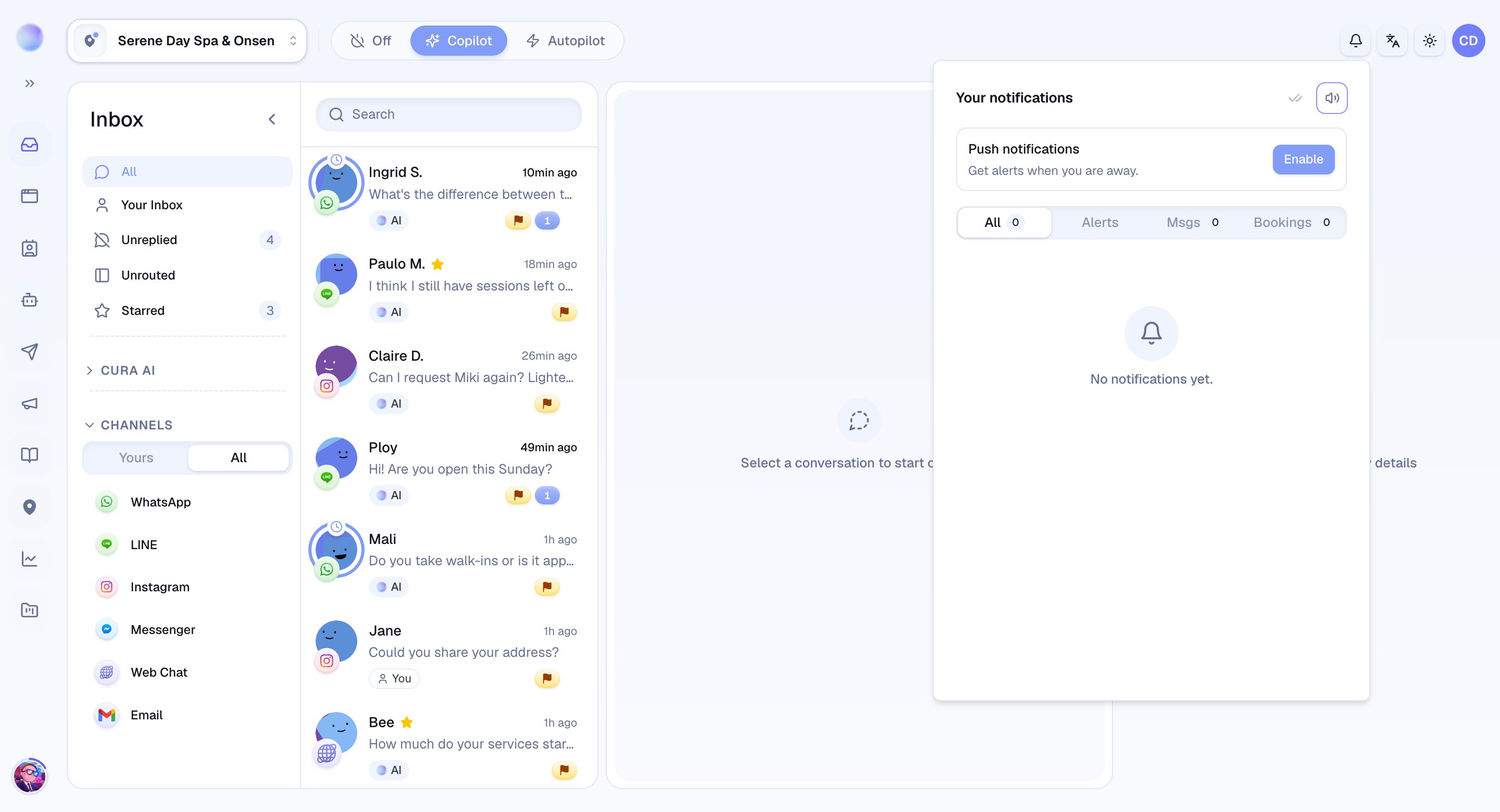
* Click the **notification bell** in the top bar.
* At the top of the menu you'll see a **Push notifications** row with an **Enable** button.
* Click **Enable**.
* Your browser will show a permission prompt — choose **Allow**.
* This registers the device with Cura so alerts can reach it even when Cura isn't the tab in front. The button now reads **Disable**, and the row shows *Enabled on this device.*
This device is now subscribed and will receive push alerts.
* Repeat the steps on any other device you use for Cura — your phone, tablet, and computer can each be subscribed from their own bell menu.
* That way you're covered whether you're at the front desk or on the move.
You'll be alerted wherever you work.
***
## Troubleshooting
* **No alerts are arriving.** Check that you chose **Allow** on the browser prompt. If you blocked it by accident, the bell menu will show *Blocked in browser settings* — re-enable notifications for Cura in your browser's site settings, then click **Enable** again in the bell menu.
* **Alerts stopped on one device.** Browsers occasionally expire a push subscription. Re-open Cura on that device, open the bell menu, and click **Enable** again to re-subscribe.
* **I get alerts on one device but not another.** Push is per device — enable it separately from the bell menu on each one.
If you clear your browser data or use private/incognito mode, your notification subscription can be removed. Re-enable push alerts afterwards.
 ***
### Related articles
* [Your profile](/settings/your-profile)
* [Organization settings](/settings/organization-settings)
* [The Inbox explained](/inbox/the-inbox-explained)
***
### Related articles
* [Your profile](/settings/your-profile)
* [Organization settings](/settings/organization-settings)
* [The Inbox explained](/inbox/the-inbox-explained)