> ## Documentation Index
> Fetch the complete documentation index at: https://docs.cura.so/llms.txt
> Use this file to discover all available pages before exploring further.
# Creating and switching workspaces
> By the end of this guide, you'll have a second workspace set up for another location or brand, and you'll know how to move between your workspaces in seconds.
By the end of this guide, you'll have a second workspace set up for another location or brand, and you'll know how to move between your workspaces in seconds.
A workspace is the home for one business or location — its own channels, Inbox, and AI knowledge. Adding one is how you bring a new branch into Cura without mixing it up with the rest.
In the top navigation, workspaces appear as **Branches** — the selector reads "All Branches" and your individual branch names. In settings they're called **workspaces**. They're the same thing.
## Before you begin
* You need to be an **admin** on the account to create a new workspace.
* Have the new location's basics handy: its name, location, and timezone.
* Your first (default) workspace should already be set up — see [Getting started with Cura](/getting-started/your-first-day).
***
Your current branch name appears in the top navigation. Opening it shows every branch you have access to.
* **Find your current branch** in the top navigation.
* **Open the selector** to see all available branches. Admins also see an **All Branches** option and a **Manage workspaces** link.
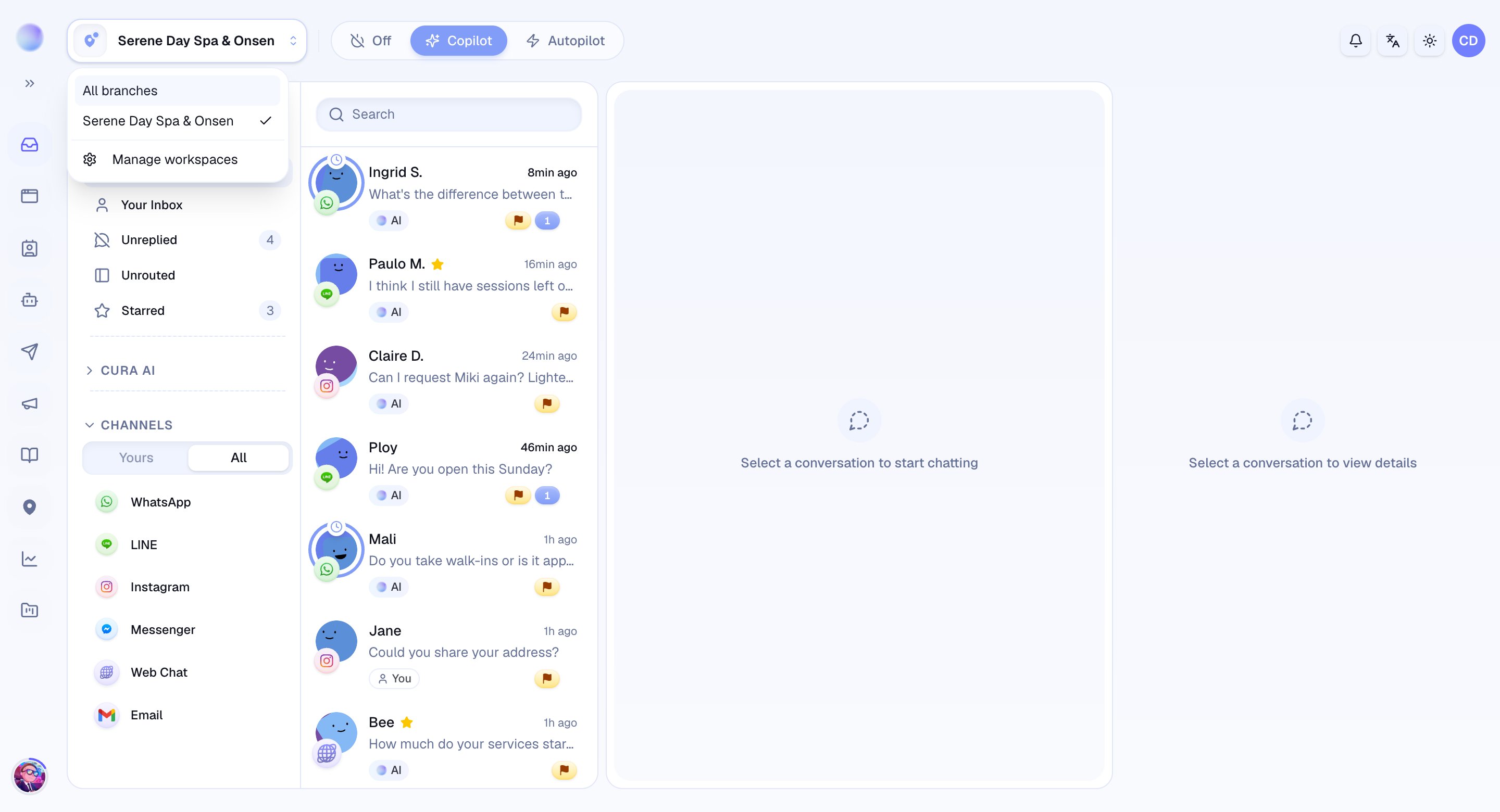 Admins create workspaces from **Manage workspaces**.
* **Name your workspace:** use the branch or brand name, e.g. "Glow Clinic — Thonglor".
* **Set its location and timezone:** so bookings, reminders, and AI schedules run at the right local time.
* **Add contact details:** phone, social links, and a map link the AI can share with customers there.
* **Optionally copy from an existing workspace:** when creating from another branch, you can choose which content to bring over — **services**, **FAQs**, **saved replies**, and **working hours**. Anything you don't tick starts empty.
You've created a new workspace — a clean container ready for its own channels and AI knowledge.
Unless you copied content from another branch, a new workspace starts empty. Treat it like a fresh start for that location:
* **Connect its channels** — see the connection guides under Setting up Cura.
* **Add its Services, prices, and FAQs** so the AI quotes that location correctly.
* **Invite the team** who'll work in it — see [Inviting team members](/team/inviting-team-members).
The new workspace is live and handling its own conversations.
You can move between branches whenever you like — nothing is interrupted by switching.
* **Open the branch selector** from the navigation.
* **Choose the branch** you want to work in. Cura loads that location's Inbox, contacts, and settings. Admins can also pick **All Branches** to see everything at once.
Switching only changes *what you're looking at*. Every workspace keeps running in the background — messages keep arriving and the AI keeps replying in each one whether or not it's the one on your screen.
The workspace Cura opens to on sign-in is your **default** workspace. Non-admins are always pinned to a specific branch they belong to — they don't get the All Branches view.
## Troubleshooting
* **I don't see Manage workspaces or the option to create one.** Only account **admins** can create and manage workspaces. Ask an admin, or check your role under [Roles and permissions](/team/roles-and-permissions).
* **A branch is missing from the selector.** You only see branches you've been added to. Ask an admin to add you to it.
* **I can't reach an upgrade-only branch.** Your plan limits how many workspaces an account can have. If you hit the limit, Cura prompts you to upgrade rather than creating a new one.
***
### Related articles
* [Workspaces explained](/team/workspaces-explained)
* [Inviting team members](/team/inviting-team-members)
* [Setting an escalation contact](/team/escalation-contacts)
* [Roles and permissions (Admin, Member, Manager, Staff)](/team/roles-and-permissions)
Admins create workspaces from **Manage workspaces**.
* **Name your workspace:** use the branch or brand name, e.g. "Glow Clinic — Thonglor".
* **Set its location and timezone:** so bookings, reminders, and AI schedules run at the right local time.
* **Add contact details:** phone, social links, and a map link the AI can share with customers there.
* **Optionally copy from an existing workspace:** when creating from another branch, you can choose which content to bring over — **services**, **FAQs**, **saved replies**, and **working hours**. Anything you don't tick starts empty.
You've created a new workspace — a clean container ready for its own channels and AI knowledge.
Unless you copied content from another branch, a new workspace starts empty. Treat it like a fresh start for that location:
* **Connect its channels** — see the connection guides under Setting up Cura.
* **Add its Services, prices, and FAQs** so the AI quotes that location correctly.
* **Invite the team** who'll work in it — see [Inviting team members](/team/inviting-team-members).
The new workspace is live and handling its own conversations.
You can move between branches whenever you like — nothing is interrupted by switching.
* **Open the branch selector** from the navigation.
* **Choose the branch** you want to work in. Cura loads that location's Inbox, contacts, and settings. Admins can also pick **All Branches** to see everything at once.
Switching only changes *what you're looking at*. Every workspace keeps running in the background — messages keep arriving and the AI keeps replying in each one whether or not it's the one on your screen.
The workspace Cura opens to on sign-in is your **default** workspace. Non-admins are always pinned to a specific branch they belong to — they don't get the All Branches view.
## Troubleshooting
* **I don't see Manage workspaces or the option to create one.** Only account **admins** can create and manage workspaces. Ask an admin, or check your role under [Roles and permissions](/team/roles-and-permissions).
* **A branch is missing from the selector.** You only see branches you've been added to. Ask an admin to add you to it.
* **I can't reach an upgrade-only branch.** Your plan limits how many workspaces an account can have. If you hit the limit, Cura prompts you to upgrade rather than creating a new one.
***
### Related articles
* [Workspaces explained](/team/workspaces-explained)
* [Inviting team members](/team/inviting-team-members)
* [Setting an escalation contact](/team/escalation-contacts)
* [Roles and permissions (Admin, Member, Manager, Staff)](/team/roles-and-permissions)