> ## Documentation Index
> Fetch the complete documentation index at: https://docs.cura.so/llms.txt
> Use this file to discover all available pages before exploring further.
# Setting an escalation contact
> By the end of this guide, you'll have chosen the person Cura turns to when a conversation needs a human — so urgent or tricky messages always reach the right pair of hands.
By the end of this guide, you'll have chosen the person Cura turns to when a conversation needs a human — so urgent or tricky messages always reach the right pair of hands.
**Escalation** is when your AI decides a conversation is better handled by a person and flags it. The **escalation contact** is the team member that flag points to. Setting one means no escalated conversation ever sits unowned.
## Before you begin
* You need to be an **admin** to set the account-level contact, or an admin or workspace **manager** to set a workspace's contact.
* A **workspace** contact must be a member of that workspace, or an admin on the account.
* The **account-level** contact must be an **admin** on the account — only admins can be the organization-wide fallback.
* Decide whether you want one contact for the whole account, a per-workspace contact, or both.
Cura uses two levels of escalation contact:
1. **Workspace-level** — the contact for one specific location, which takes precedence there.
2. **Account-level** — a fallback for the whole organization, used when a workspace has no contact of its own.
***
Decide where this contact applies.
* **Account-level:** a single point of contact across the whole organization — useful if one person oversees everything.
* **Workspace-level:** a contact for one location. Set this when each branch has its own person who should handle escalations there.
For a per-location contact:
* **Open the workspace** you want to set up.
* **Go to its settings** and find the escalation contact option.
* **Choose the person** from the workspace's members (or an account admin).
* **Save.** Escalated conversations in that workspace now point to them.
That workspace has an escalation contact.
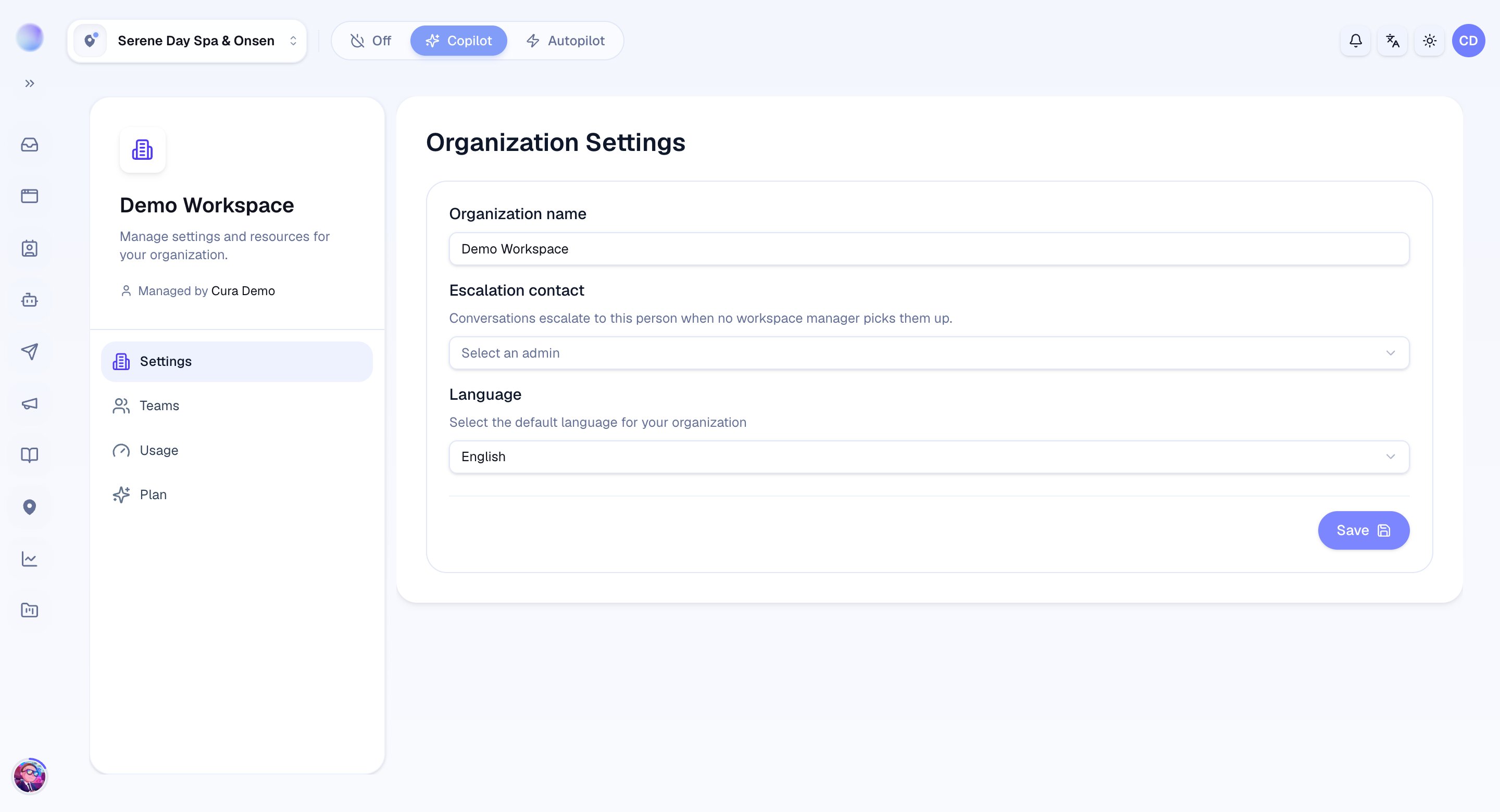 For an organization-wide fallback:
* **Open your organization settings.**
* **Choose the account escalation contact.** This list only shows account **admins** — the organization-wide fallback must be an admin.
* **Save.**
Your account has a fallback escalation contact.
A workspace contact takes precedence in that workspace. The account-level contact acts as the fallback where no workspace contact is set.
Choose someone who's reliably reachable during business hours — and pair this with clear AI escalation rules so Cura knows *when* to hand off. See [Getting started with Cura](/getting-started/your-first-day) for setting those rules.
## How Cura chooses who to escalate to
When the AI escalates a conversation, Cura works down a fallback chain and assigns the first person it finds:
1. **The channel owner** — whoever owns the channel the message came in on.
2. **The workspace escalation contact** — or, if none is set, the first **manager** in that workspace.
3. **The account escalation contact** — the organization-wide fallback (an admin).
4. **The first organization admin** — so an escalation never ends up unowned.
Because of this chain, even a workspace with no contact set will still route escalations — to its first manager, then up to the account level. Setting an explicit contact just makes the destination predictable.
## Troubleshooting
* **The person I want isn't in the list.** For a workspace contact, Cura only lets you pick someone who is a member of that workspace or an account admin — add them to the workspace first (see [Inviting team members](/team/inviting-team-members)). For the account-level contact, only admins appear.
* **Escalated conversations aren't reaching anyone.** Confirm a contact is set, and check your AI's escalation rules so it knows when to escalate.
***
### Related articles
* [Inviting team members](/team/inviting-team-members)
* [Roles and permissions (Admin, Member, Manager, Staff)](/team/roles-and-permissions)
* [Teams and team leads](/team/teams-and-team-leads)
* [The Inbox explained](/inbox/the-inbox-explained)
For an organization-wide fallback:
* **Open your organization settings.**
* **Choose the account escalation contact.** This list only shows account **admins** — the organization-wide fallback must be an admin.
* **Save.**
Your account has a fallback escalation contact.
A workspace contact takes precedence in that workspace. The account-level contact acts as the fallback where no workspace contact is set.
Choose someone who's reliably reachable during business hours — and pair this with clear AI escalation rules so Cura knows *when* to hand off. See [Getting started with Cura](/getting-started/your-first-day) for setting those rules.
## How Cura chooses who to escalate to
When the AI escalates a conversation, Cura works down a fallback chain and assigns the first person it finds:
1. **The channel owner** — whoever owns the channel the message came in on.
2. **The workspace escalation contact** — or, if none is set, the first **manager** in that workspace.
3. **The account escalation contact** — the organization-wide fallback (an admin).
4. **The first organization admin** — so an escalation never ends up unowned.
Because of this chain, even a workspace with no contact set will still route escalations — to its first manager, then up to the account level. Setting an explicit contact just makes the destination predictable.
## Troubleshooting
* **The person I want isn't in the list.** For a workspace contact, Cura only lets you pick someone who is a member of that workspace or an account admin — add them to the workspace first (see [Inviting team members](/team/inviting-team-members)). For the account-level contact, only admins appear.
* **Escalated conversations aren't reaching anyone.** Confirm a contact is set, and check your AI's escalation rules so it knows when to escalate.
***
### Related articles
* [Inviting team members](/team/inviting-team-members)
* [Roles and permissions (Admin, Member, Manager, Staff)](/team/roles-and-permissions)
* [Teams and team leads](/team/teams-and-team-leads)
* [The Inbox explained](/inbox/the-inbox-explained)