> ## Documentation Index
> Fetch the complete documentation index at: https://docs.cura.so/llms.txt
> Use this file to discover all available pages before exploring further.
# Choosing triggers and actions
> Every workflow is built from two ingredients: a trigger that decides when it runs, and a set of actions that decide what happens.
Every workflow is built from two ingredients: a **trigger** that decides *when* it runs, and a set of **actions** that decide *what* happens. Understanding both helps you pick the right workflow for the outcome you want — and configure it confidently.
You don't assemble these yourself; Cura's workflows already pair a trigger with the right actions. This article explains what each one means so the choices on the configuration page make sense.
***
## Triggers: the moment a workflow starts
A **trigger** is the single event Cura watches for. When it happens, the workflow begins. Cura's triggers follow the customer journey:
* **After our last message** — a message has gone out to a customer. Handy for follow-ups after you (or your AI) reach out.
* **When a customer replies** — the customer answers. Useful for routing or tagging based on what they say.
* **When an appointment is booked** — a new appointment is made. Ideal for confirmations and reminders.
* **When a booking request is confirmed** — a pending request is accepted.
* **When an appointment is cancelled** — an appointment is called off. Good for win-back or rebooking messages.
* **When an appointment is rescheduled** — an appointment's details change. Useful for sending the new time.
* **When a booking request is declined** — a requested booking isn't accepted. A chance to offer alternatives.
* **After a consultation completes** — the visit is done. Perfect for aftercare check-ins or review requests.
* **After a customer no-shows** — the customer missed their appointment. Good for gentle no-show recovery.
* **When a contact goes quiet** — a customer has been silent for a while. Useful for re-engagement.
Each workflow has exactly one trigger, set by its template. You'll see it named on the workflow's page so you know what sets it in motion.
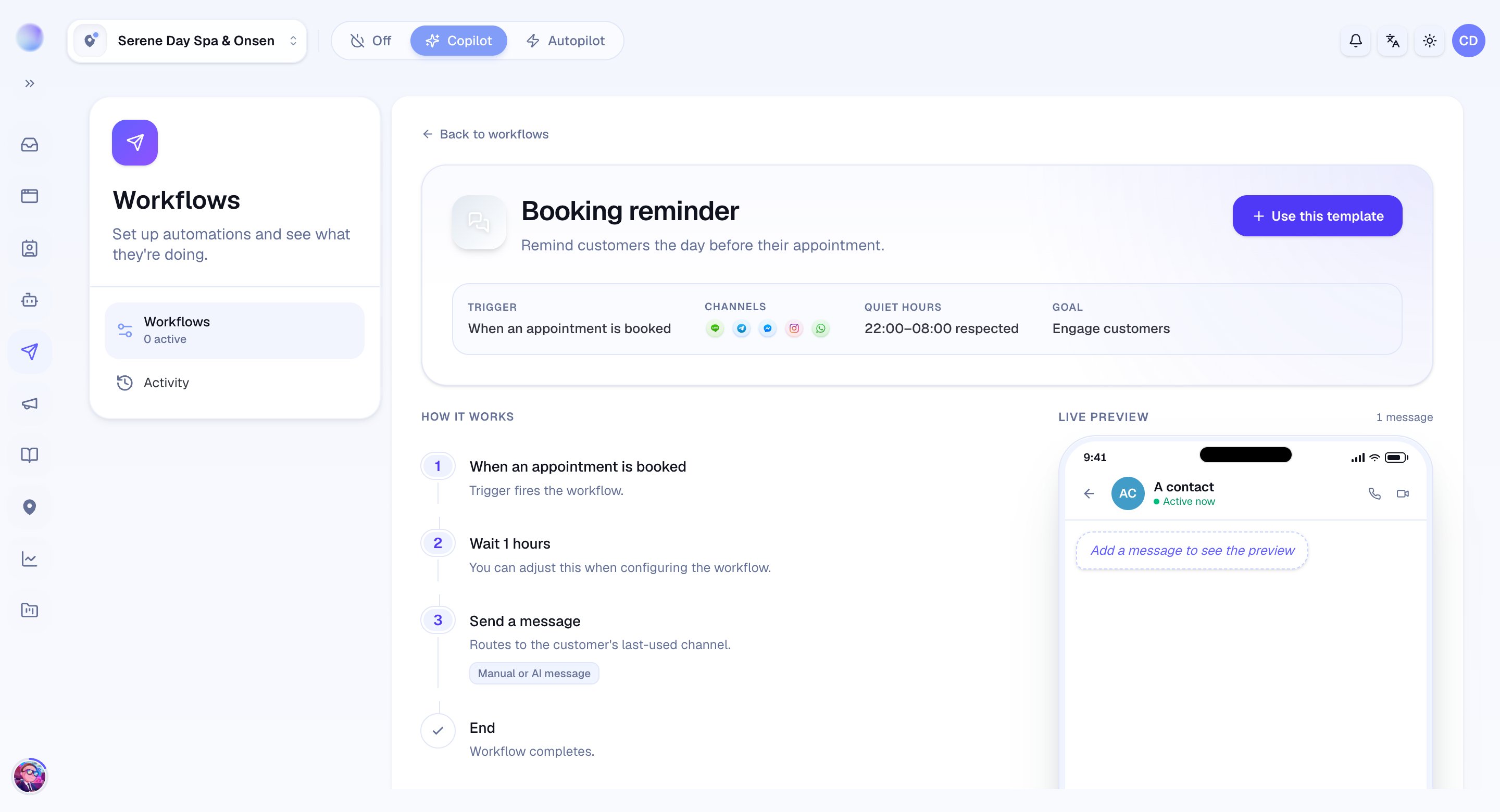 ## Actions: what the workflow does next
Once triggered, the workflow runs through its **actions** in order. The building blocks Cura's templates use are:
* **Wait** — pause for a set time, or until just before a known moment (e.g. one day before the appointment). This is how reminders land at the right time.
* **Send a message** — send text to the customer on their channel. This is the action customers actually see.
* **Draft with AI** — instead of fixed text, have the AI write the message at send time toward a goal you set (for example, a warm aftercare check-in). You provide the goal and context on the **Configure** tab.
* **Check a condition** — branch based on a detail, so the workflow can do one thing in some cases and another in others (e.g. only follow up if a reply is still needed).
* **Add or remove a tag** — label the conversation so it's easy to find and organize later.
* **Create a task** — open a task for your team to act on.
* **Hand off to a human** — write a draft for a teammate to review and send, instead of sending automatically.
You won't add or remove these steps — the template arranges them. What you *can* set are the open details: the message wording (or AI goal and context) and the wait timing, edited on the **Configure** tab.
Match the trigger to the outcome. Want fewer no-shows? Choose a **When an appointment is booked** reminder. Want to recover lost bookings? A **When an appointment is cancelled** workflow does the chasing for you.
## How to choose the right workflow
1. **Start with the outcome** you want — fewer no-shows, more rebookings, re-engaged quiet customers.
2. **Find the trigger** that matches that moment in the customer journey.
3. **Open the workflow**, read what its actions do, and set the wording and timing.
If a message can't be sent when an action runs — because a channel's messaging rules don't allow it at that moment — Cura stops the run safely rather than forcing it through.
***
### Related articles
* [What workflows do](/workflows/what-workflows-are)
* [Enabling and configuring a workflow](/workflows/enable-and-configure)
* [Scoping a workflow to specific channels](/workflows/scope-to-channels)
* [Monitoring workflow runs and analytics](/workflows/monitor-runs-and-analytics)
## Actions: what the workflow does next
Once triggered, the workflow runs through its **actions** in order. The building blocks Cura's templates use are:
* **Wait** — pause for a set time, or until just before a known moment (e.g. one day before the appointment). This is how reminders land at the right time.
* **Send a message** — send text to the customer on their channel. This is the action customers actually see.
* **Draft with AI** — instead of fixed text, have the AI write the message at send time toward a goal you set (for example, a warm aftercare check-in). You provide the goal and context on the **Configure** tab.
* **Check a condition** — branch based on a detail, so the workflow can do one thing in some cases and another in others (e.g. only follow up if a reply is still needed).
* **Add or remove a tag** — label the conversation so it's easy to find and organize later.
* **Create a task** — open a task for your team to act on.
* **Hand off to a human** — write a draft for a teammate to review and send, instead of sending automatically.
You won't add or remove these steps — the template arranges them. What you *can* set are the open details: the message wording (or AI goal and context) and the wait timing, edited on the **Configure** tab.
Match the trigger to the outcome. Want fewer no-shows? Choose a **When an appointment is booked** reminder. Want to recover lost bookings? A **When an appointment is cancelled** workflow does the chasing for you.
## How to choose the right workflow
1. **Start with the outcome** you want — fewer no-shows, more rebookings, re-engaged quiet customers.
2. **Find the trigger** that matches that moment in the customer journey.
3. **Open the workflow**, read what its actions do, and set the wording and timing.
If a message can't be sent when an action runs — because a channel's messaging rules don't allow it at that moment — Cura stops the run safely rather than forcing it through.
***
### Related articles
* [What workflows do](/workflows/what-workflows-are)
* [Enabling and configuring a workflow](/workflows/enable-and-configure)
* [Scoping a workflow to specific channels](/workflows/scope-to-channels)
* [Monitoring workflow runs and analytics](/workflows/monitor-runs-and-analytics)