

Before you begin
- At least one connected channel. If you haven’t connected one yet, start with Connect LINE OA or How channels work in Cura.
- Admin access, or you must be the person who created the channel.
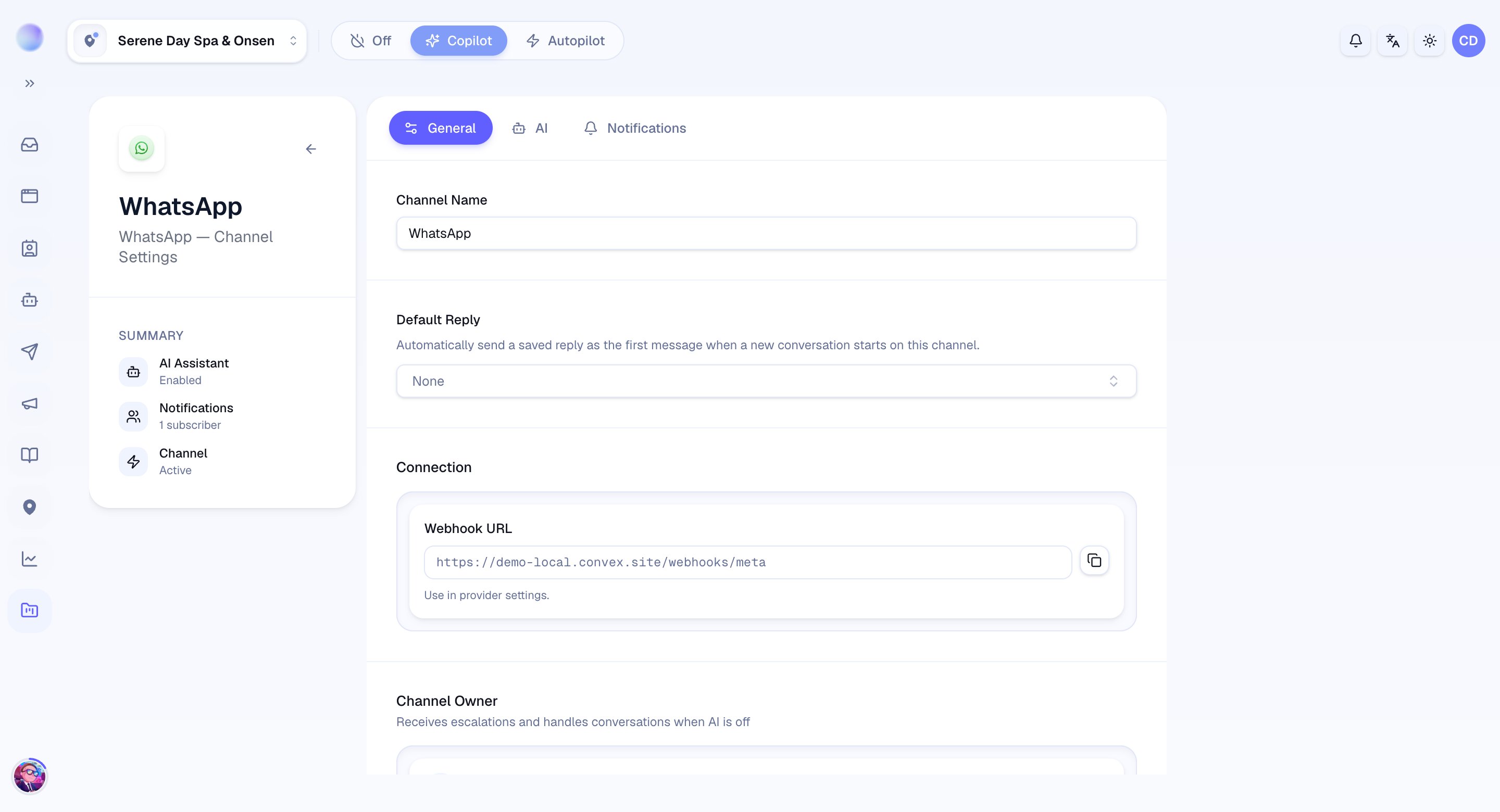
Master AI
The Master AI switch turns your AI on or off for this one channel.- On: the AI answers new messages automatically.
- Off: messages still arrive in your Inbox, but the AI stays quiet and your team replies manually.
AI schedule
Use the AI schedule to let the AI answer only during the hours you choose — outside those hours, messages wait for your team.- Enable the schedule, then set the days, start time, and end time.
- Set the timezone (e.g. Asia/Bangkok) so the hours match your business.
Start and end times are set in 30-minute steps (for example 09:00 or 09:30).
Channel Owner
The Channel Owner is the team member responsible for this channel.- Assign an owner from your team. The owner is automatically a notification subscriber and can’t be removed from notifications while they own the channel.
- When you connect a channel, the person who created it is set as the owner by default.
Notification subscribers
Notification subscribers receive push notifications for new messages on this channel — so the right people know when a customer is waiting.- Add a subscriber for anyone who should be alerted.
- Remove a subscriber when they no longer need alerts. The channel owner can’t be removed here; change the owner first if needed.
Default saved reply
Some channels let you set a default saved reply — a message sent automatically on the first message of a new conversation (for example, a quick greeting). This is optional and reusable from your Saved replies.A good starting setup
- Owner: the person who checks that channel most.
- Subscribers: anyone who covers replies, so nothing is missed.
- Master AI: on, with an AI schedule matching your opening hours if you want a human to handle after-hours chats.
These settings apply only to the channel you’re editing. Adjust each connected channel separately.
Troubleshooting
- A teammate isn’t getting notifications. Check they’re listed as a subscriber on that channel and that push notifications are allowed on their device.
- The AI replies outside business hours. Confirm the AI schedule is enabled and its timezone is correct — a wrong timezone shifts the active window.
- You can’t change a setting. Only an admin or the channel’s creator can edit it. Ask an admin if you need access.