Before you begin
- You’ll need Admin or Manager access to the workspace you’re editing.
- Have your business location, timezone, phone number, social handles, and a Google Maps link ready.
Settings here apply to this workspace only. If you run more than one branch, each workspace is set up separately — so a customer messaging your Sukhumvit branch gets Sukhumvit’s hours and address.
1
Open workspace settings
- Go to Settings → Workspaces.
- Make sure the correct workspace is selected before you edit — changes apply to whichever workspace you’re viewing.
2
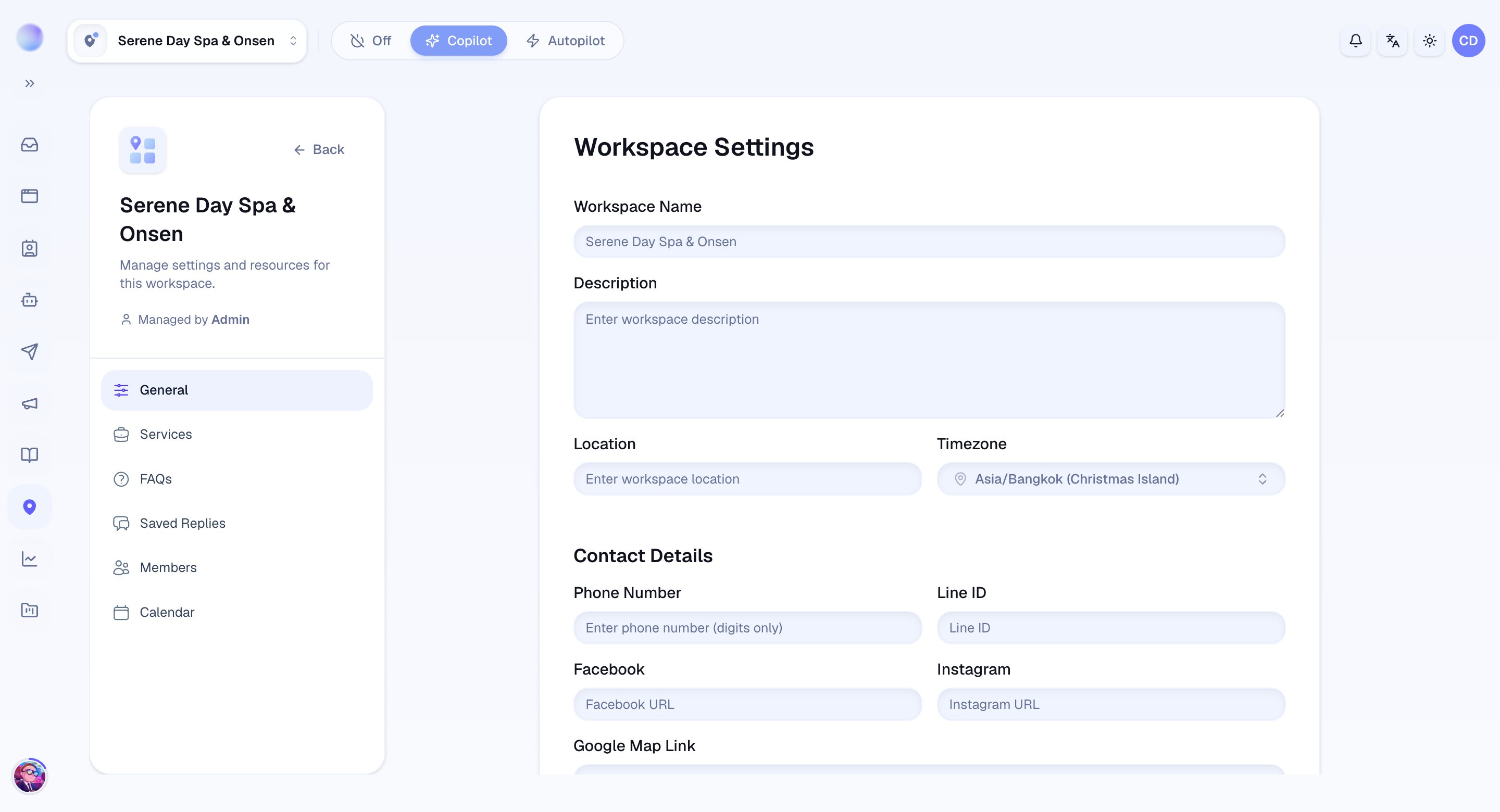
Set location and timezone
- Location: enter the address or area for this workspace. The AI can share this with customers who ask where you are.
- Timezone: choose the timezone this location runs in (e.g. Asia/Bangkok). This keeps bookings, reminders, and Quiet Hours all firing at the right local time.
Cura knows where and when this workspace operates.
3
Add your contact details
Under Contact Details, give the AI the information it can share when customers ask how to reach you.
- Phone Number: your main contact number (digits only).
- Line ID: your LINE ID.
- Facebook and Instagram: your page or profile URLs.
- Google Map Link: a link customers can tap for directions.
The AI now has the details it needs to answer “how do I reach you?”
4
Set Quiet Hours (optional)
Quiet Hours pause automated workflow messages during the hours you choose, so customers don’t get overnight notifications.
- Turn the Quiet Hours switch on.
- Pause from / Resume at: pick the start and end hours of the quiet window.
- During quiet hours: choose Defer (send when the window ends) or Skip (don’t send at all).
- A live preview shows the current time in the workspace timezone so you can confirm the window lines up before saving.
5
Save your changes
Click Save to apply everything you’ve set for this workspace.
Your workspace is set up — location, timezone, contact details, and Quiet Hours are all in place.
Deleting a workspace
Only Admins can delete a workspace. The button lives at the bottom of the workspace settings page.Troubleshooting
- Bookings, reminders, or automated messages are at the wrong time. Check the workspace timezone — this is the usual cause.
- The AI shares the wrong address. Confirm you edited the right workspace; details are per-workspace, not shared across branches.