

What escalation is
Escalation is the AI flagging a conversation for a human. It’s different from a handoff or take over, where you choose to step in. With escalation, the AI itself decides it shouldn’t keep replying and passes the conversation on. When a conversation is escalated, the AI stops replying so a person can take it from there.When the AI escalates
The AI hands off automatically when:- A customer asks for a human — “Can I speak to someone?”
- It can’t help — the question is outside what it knows or can do.
- Something goes wrong — an error means it can’t complete the task reliably.
Set up who receives escalations
So escalations reach the right person, set a designated team member to handle them.1
Open your workspace settings
- Open the workspace and find its Escalation settings.
2
Choose who handles escalations
- Pick the team member who should receive escalated conversations. They’ll be the point of contact when the AI hands off.
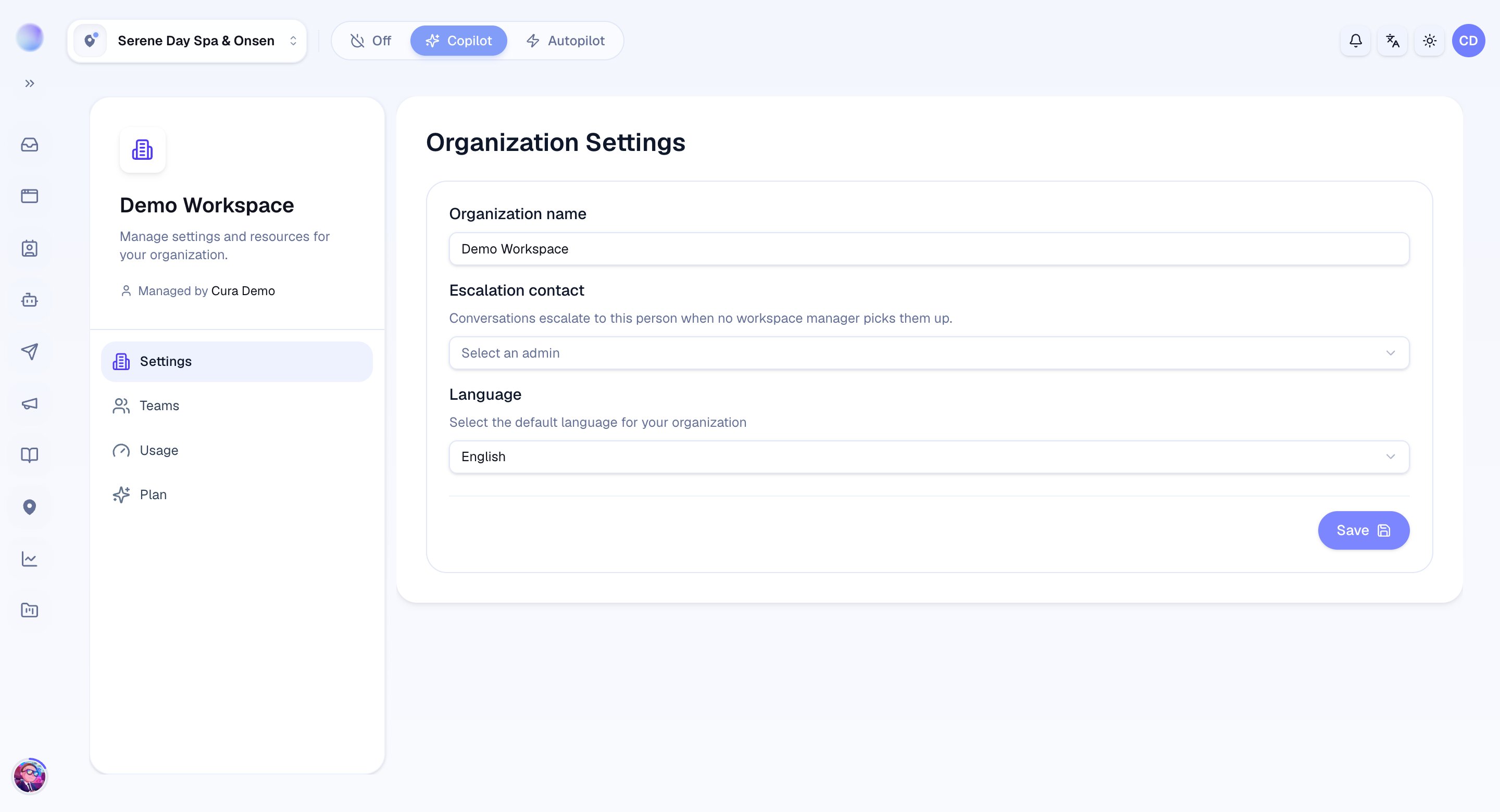
Escalations now route to the right person, so nothing slips through the cracks.
3
Add your own escalation triggers
- In Advanced AI instructions, use the Escalation & handoff field to describe extra situations that should always go to a human.
A multi-location business may need the customer to choose a branch before the AI can escalate — it’ll ask which location they want first, then hand off.
Troubleshooting
- No one is receiving escalations. Confirm a team member is set as the escalation contact in the workspace settings.
- The AI escalates too often. Tighten your Escalation & handoff instructions, and make sure your Knowledge Base, FAQs, and Services cover the questions it’s giving up on.
- The AI keeps replying when it should stop. Once escalated, the AI stops; if it didn’t escalate, check whether the trigger you expected is described clearly in your instructions.