

Before you begin
- You’ll need permission to manage your AI agent — usually Admin or Manager access.
- Have the details ready: the message wording you want, and any timing (e.g. “remind one day before”).
- At least one channel connected, so the workflow has somewhere to send.
A workflow comes pre-built. You don’t draw the steps — you choose a workflow, fill in its configurable fields (the parts the template leaves up to you), pick which channels it applies to, and switch it on with the On / Off toggle.
1
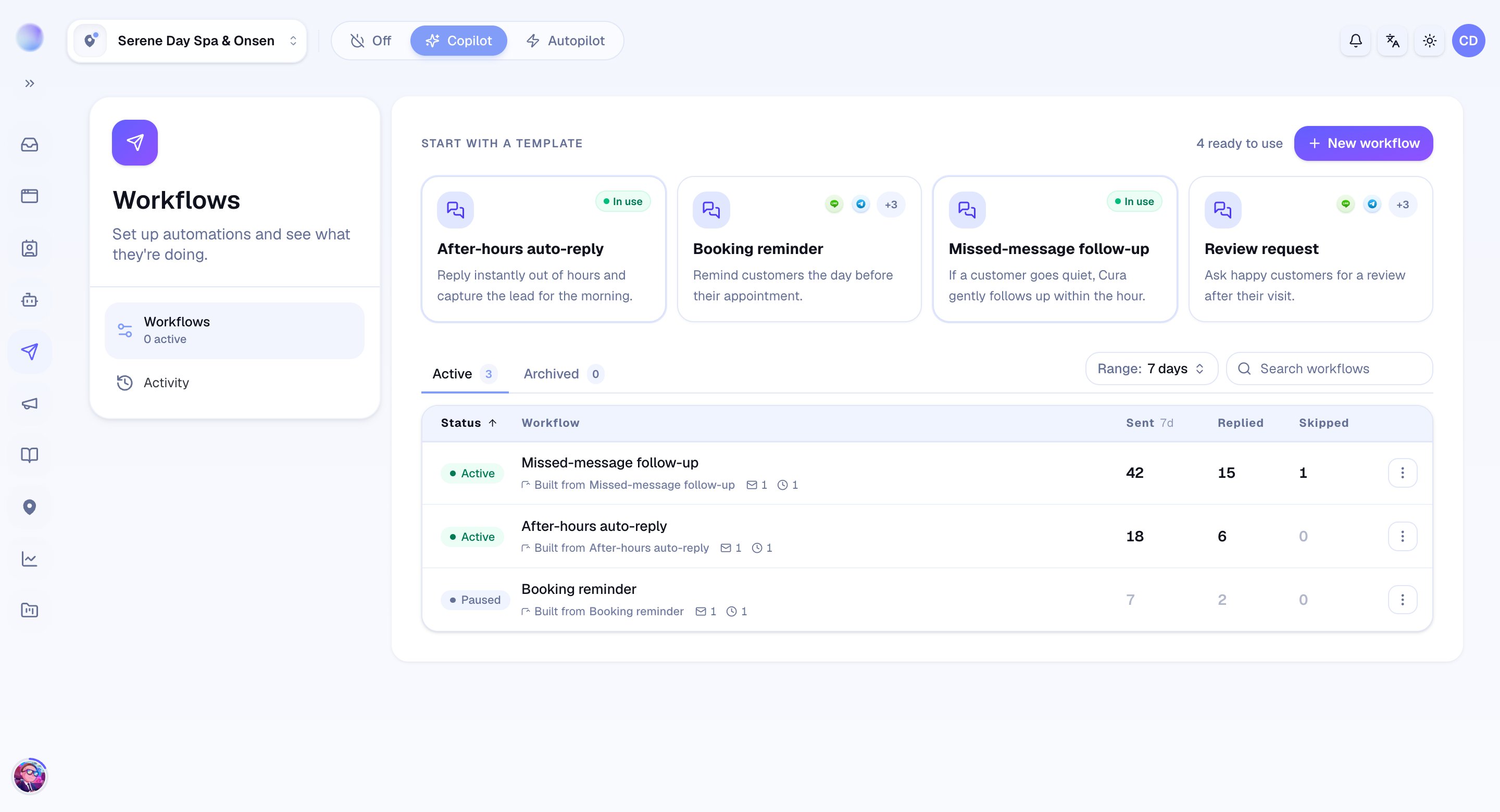
Open Workflows and pick one
- Go to Workflows from the main navigation.
- Browse the list of available workflows. Each shows its name, what it does, and whether it’s currently Active.
- Click a workflow to open its configuration page.
2
Fill in the Configure tab
The Configure tab is where you set the details the template left open for you.
- Message wording: edit the text the workflow will send so it sounds like your business.
- AI goal and context (on workflows that draft with AI): tell the AI what the message should achieve and any background it needs, instead of writing fixed text.
- Timing: where a workflow waits before acting, set how long (e.g. one day before the appointment).
- Only the fields the template marks as configurable appear here — everything else is handled for you.
- A live phone preview on the side shows how the message will look.
The workflow now knows what to say and when.
3
Choose which channels it applies to
- Open the Apply to tab.
- Select the channels (inboxes) this workflow should run in. Leave out any you don’t want it touching.
- See Scoping a workflow to specific channels for guidance.
4
Save and enable
- Click Save & enable to turn the workflow on.
- The On / Off toggle switches to On, and Cura starts watching for its trigger.
- Prefer to keep tweaking? Click Save draft to keep it off, and enable it later.
Your workflow is live and will run automatically the next time its trigger fires.
How to know it’s working
- Trigger the event yourself — for an appointment reminder, create a test booking on a scoped channel.
- Check the Logs tab to see the run appear. See Monitoring workflow runs and analytics.
Troubleshooting
- The workflow isn’t running. Confirm the On / Off toggle is set to On and that the channel where the event happened is selected under Apply to.
- You can’t turn it on. A workflow needs at least one compatible channel selected under Apply to before it can be activated.
- No message was sent. The channel may not allow messaging that customer right now (each platform has its own rules). The run will show as Policy blocked in the logs.
- The message is wrong. Reopen the Configure tab, edit the wording, and save again.