

Before you begin
- Open a conversation in the Inbox where you can reply.
- If the AI is handling the conversation, take over first so you can type.
1
Open the saved replies menu
In the message box, type 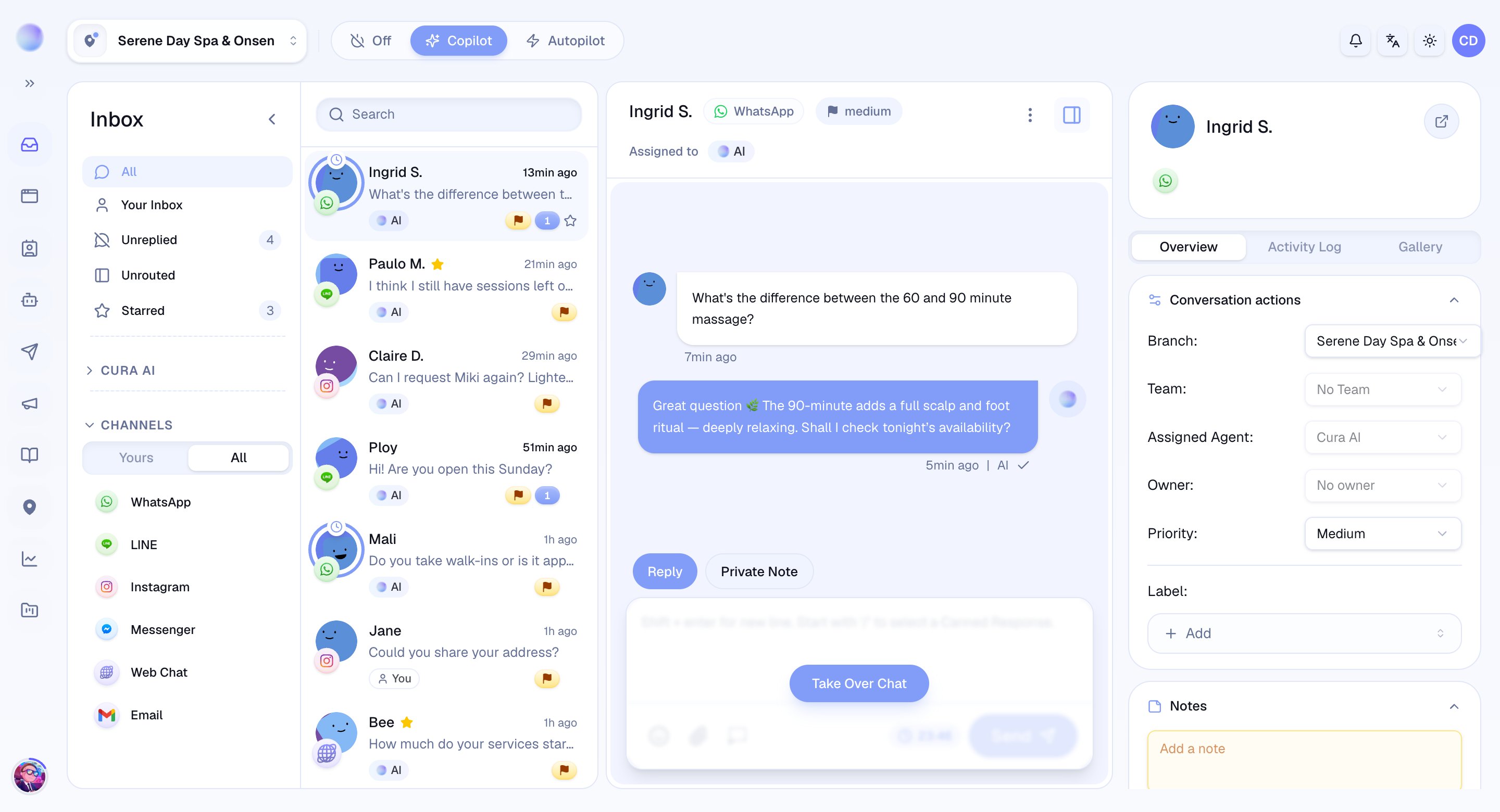
/ to bring up the saved replies menu.- A list of your saved replies appears above the box.
- Keep typing after the
/to search and filter the list down to what you want.
2
Choose Yours or All
The menu has two tabs:
- Yours — saved replies you created.
- All — every saved reply available in your workspace, including teammates’.
3
Insert the reply
- Click a reply (or use the arrow keys and press Enter) to insert its text into the message box.
- The text is now editable — tweak a name, a date, or a price before sending.
- Click Send when it’s ready.
You’ve sent a saved reply — consistent wording, a fraction of the effort.
Troubleshooting
- Nothing appears when I type
/? Make sure you’re in Reply mode and your cursor is at the start, then type/. - A reply you expected isn’t there? Check the All tab — it may have been created by a teammate.