

Before you begin
- Open a conversation in the Inbox where you can reply.
- If the AI is handling the conversation, take over first.
1
Open the attach menu
In the message box, click the Attach file button.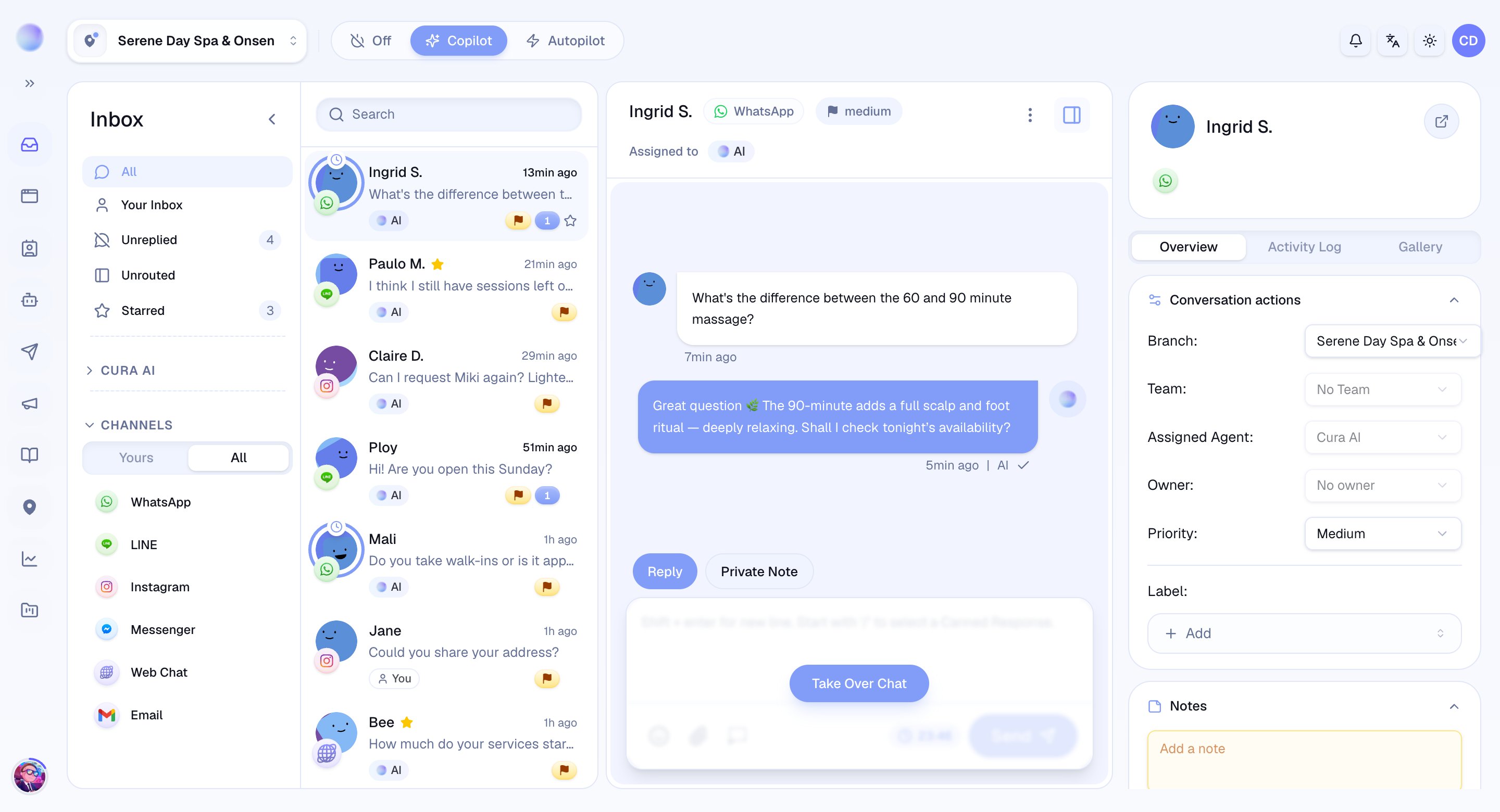
- Choose a file from your device.
- You can attach images, videos, and files (such as PDFs and documents).
2
Review before sending
Your selected files appear as previews above the message box before they go anywhere.
- Add a caption: type a message alongside the attachment if you’d like.
- Remove a file: drop anything you didn’t mean to include.
3
Send
Click Send. Your attachments are delivered to the customer in their own channel, right alongside your message.
You’ve sent your attachment — the customer receives it natively in LINE, Instagram, WhatsApp, or wherever they messaged from.
Send a LINE sticker
For conversations on LINE, you can send a sticker instead of a message.- Open the sticker option in the message box (LINE conversations only) and choose from the available stickers.
- A sticker is sent on its own — it can’t be combined with text or an attachment in the same message.
Stickers are a LINE-only feature, so the sticker option only appears on LINE conversations.
Troubleshooting
- A file was rejected? Cura shows the reason — usually an unsupported type or a size over the channel’s limit. Try a smaller file or a supported format.
- Can’t attach anything? Check that you’re in Reply mode, the conversation is open, and the channel’s response window hasn’t closed.