

Before you begin
- You’ll need access to the Inbox and conversations you want to control.
- Mode is set for your whole workspace — one setting covers every channel and every conversation. (Per-channel overrides are on the way, but today it’s one control for all.)
- Changing the Mode is a manager/admin action. If you don’t see the control, ask an admin on your team.
1
Find the Mode control
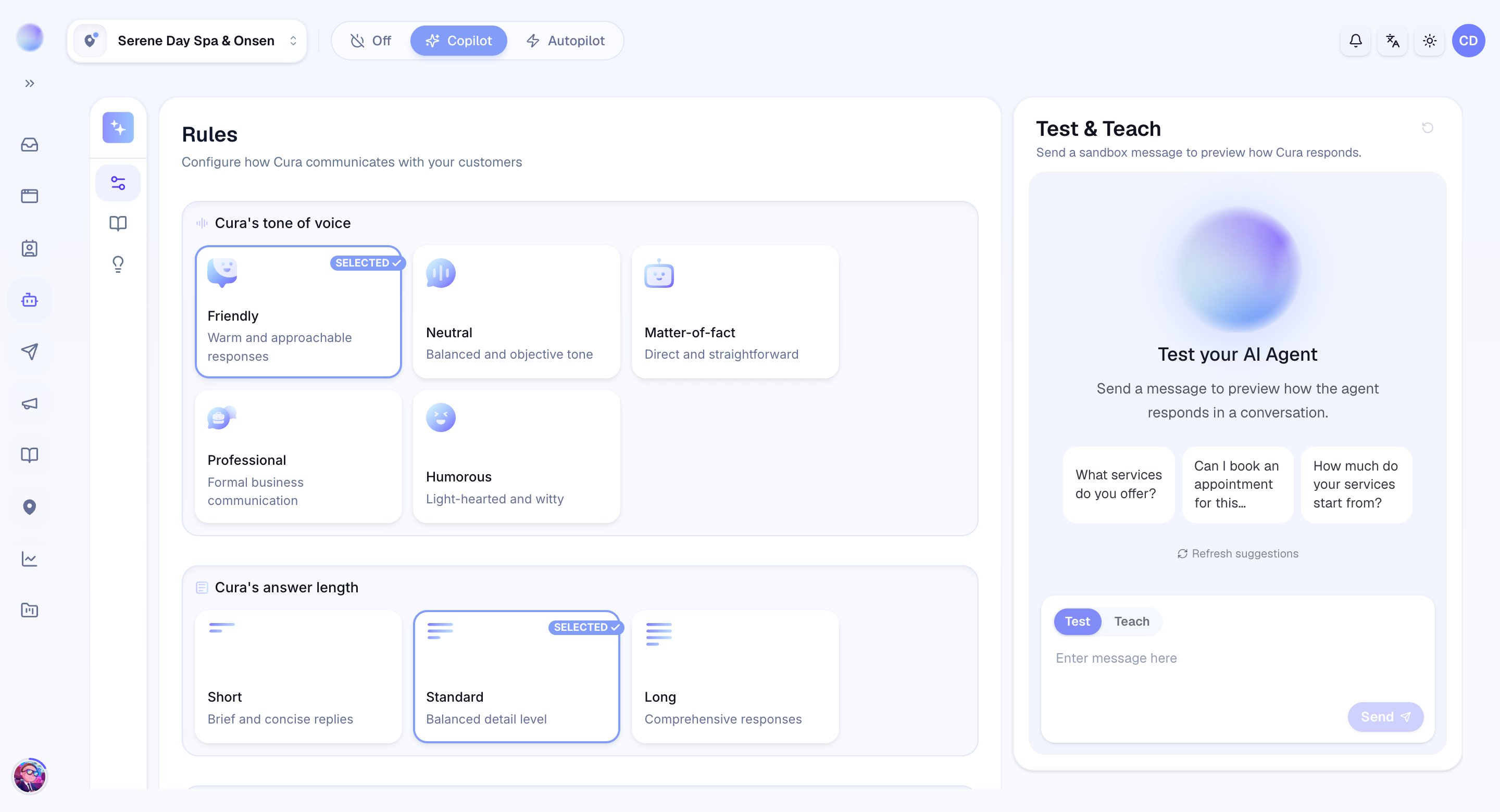
- The Mode control sits in the top bar next to your workspace name, and also on your AI Settings page.
2
Choose a mode
There are three settings, and they change how Cura handles incoming customer messages across all your channels:
- Off — Cura is paused. Customers get no AI replies on any channel. Every conversation waits for a human.
- Copilot — Cura drafts a reply for your team to review, edit, and send. Nothing reaches the customer without your approval. See Draft mode (Copilot).
- Autopilot — Cura replies to customers automatically when it’s confident. This is the classic “AI on” behaviour — replies auto-send.
You control, in one place, whether Cura stays silent, drafts for review, or replies on its own.
3
Know that changing Mode is a manager action
Switching the workspace Mode is an admin/manager action — the same permission that governs your other AI settings.
4
Take over a single conversation
Sometimes you want Cura handling most chats but you’ll personally handle this one.
- Open the conversation and take over — you step in, and the AI steps back for that thread. See Taking over from the AI for the full walkthrough.
- Reply as yourself. The customer simply sees a smooth, continuous conversation.
You can jump into any conversation without changing the mode for everyone.
5
Know how the controls stack
Cura acts on a conversation only when all of these line up:
- Mode is Autopilot (auto-send) or Copilot (draft for review), and
- you’re within the AI schedule (if one is set), and
- the conversation hasn’t been escalated or taken over by a human.
Setting Mode to Off is different from escalation. Escalation is the AI deciding to hand off one conversation; the Mode control is you deciding for the whole workspace. See Escalation.
Troubleshooting
- The AI isn’t replying anywhere. Check the Mode. Autopilot sends replies automatically; Copilot only drafts them for review; Off stays silent.
- The AI is on but silent in one chat. That conversation may have been escalated or taken over by a human — check its status.
- The AI is on but only replies sometimes. You may have an AI schedule limiting its hours.
- I can’t change the Mode. Switching Mode is a manager/admin action — ask an admin on your team to change it, or to give you access.