

Before you begin
- You’ll need at least one channel connected so conversations are flowing in.
- Open the Inbox from the left navigation.
1
Read the conversation list
The left side of the Inbox is your conversation list, sorted by newest activity first.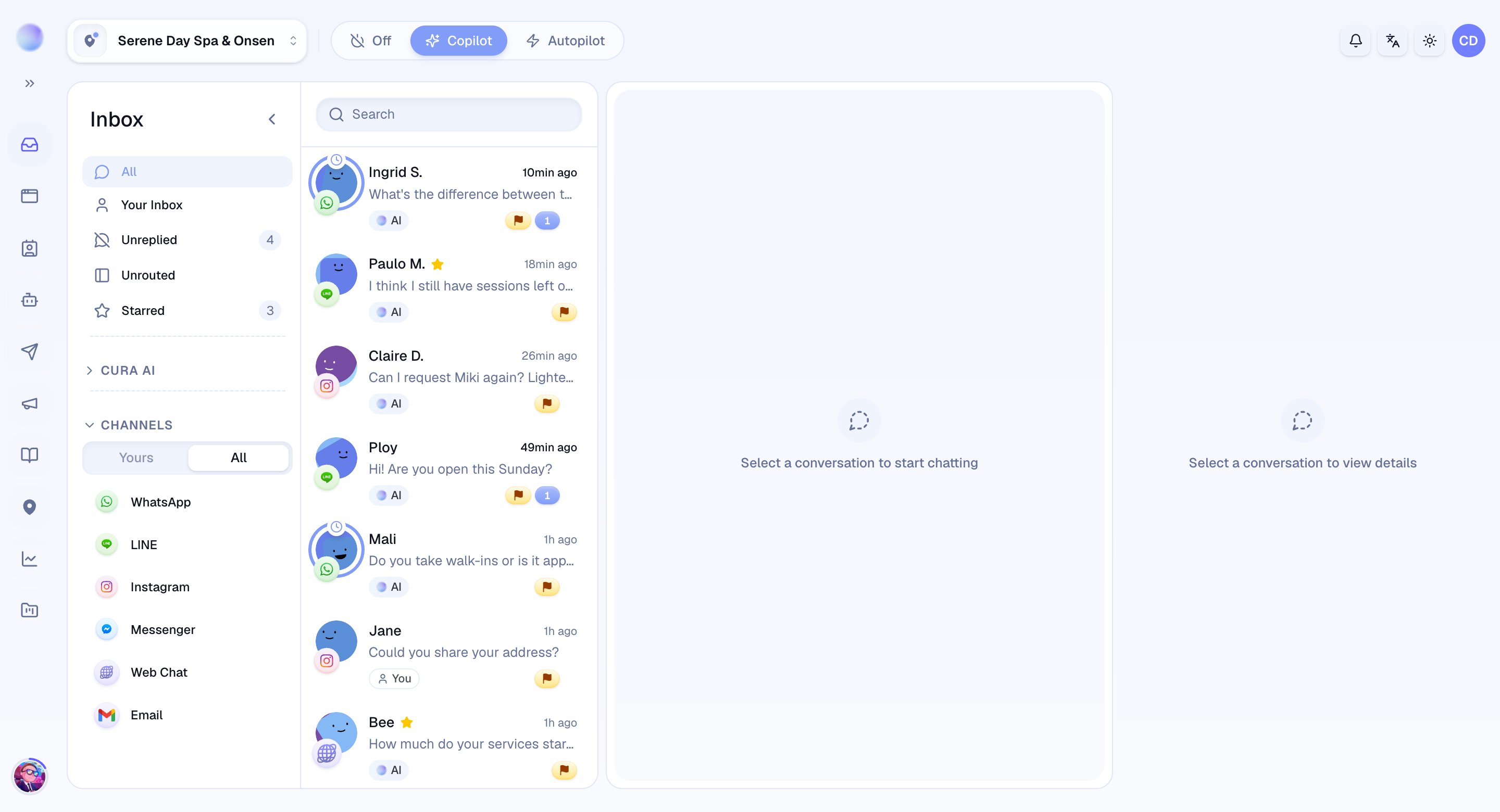
- Channel badge: each row shows which channel the message came from, so you always know where you’re replying.
- Handler: a quick marker tells you whether your AI or a person is handling that conversation.
- Unread: conversations needing attention stand out at a glance.
2
Pick a filter
Filters narrow the list to one job at a time. Click any of these:
- All — every open conversation.
- Your Inbox — conversations you’re handling or own. Start your day here.
- Unreplied — conversations still waiting on a reply. Your “needs attention” list.
- Starred — conversations you’ve flagged to return to.
- Unrouted — open conversations not yet assigned to a branch. Visible to admins and managers, and handy for a team sweep.
3
Narrow further by channel or team
Beyond the main filters, you can focus on just one part of the business:
- Channel: see only LINE, only Instagram, and so on — handy when one inbox is busier than the rest.
- Team or branch: view the conversations for a specific team or workspace.
You’ve now got a focused view — only the conversations that matter for the task in front of you.
4
Switch by status
Conversations also have a status, and you can switch between them:
- Open — active conversations.
- Snoozed — conversations you’ve set aside to deal with later.
- Resolved — finished conversations, kept for your records.
Combine a status with a filter — for example, Open + Unreplied — to zero in on exactly what’s left to do.