

Before you begin
- Open a conversation from the Inbox.
- If your AI is currently handling the conversation, you’ll take over first so you can type. (See Taking over from the AI.)
1
Open the conversation
Click any conversation in the list. You’ll see the full message history with the customer, newest at the bottom, and the message box at the bottom of the screen.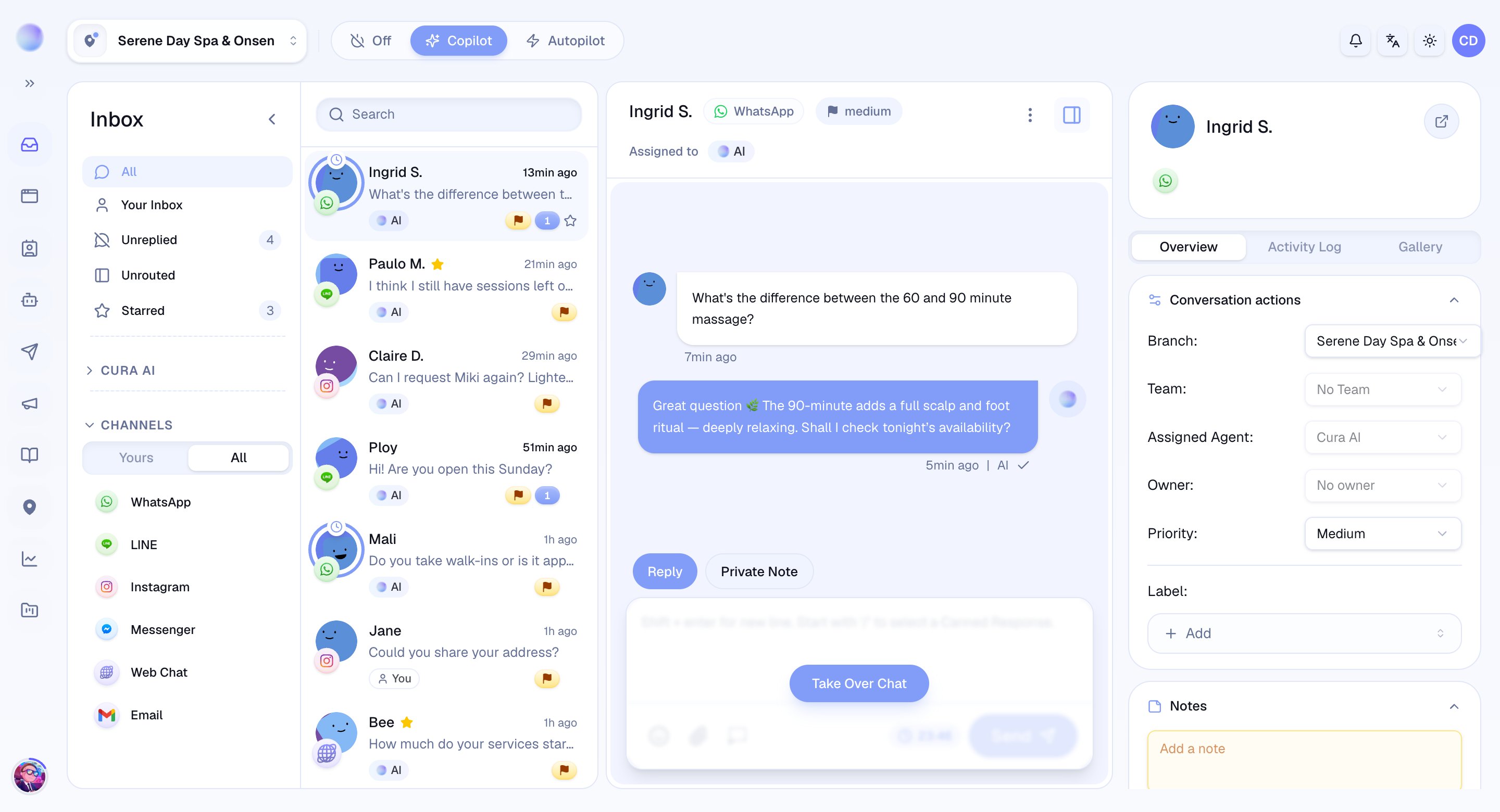
2
Make sure you're in Reply mode
Above the message box is a toggle:
- Reply — your message is sent to the customer.
- Private Note — your message is visible only to your team, never to the customer.
3
Write and send
- Type your message: press Shift + Enter for a new line within the same message.
- Add a saved reply: start typing
/to pull up your reusable answers. (See Using saved replies.) - Attach an image or file: use the attach button to send photos, videos, or documents.
- Send: click Send when you’re ready.
You’ve now replied — the message is delivered in the customer’s channel.
4
Watch the response window
Some channels limit how long you can message a customer after their last reply.
- If you see a Response Window Closed notice, the channel’s 24-hour policy is blocking new messages until the customer replies again.
- This is set by the channel (for example, Messenger), not by Cura.
Troubleshooting
- Can’t type in the box? The AI may still be handling the conversation — take over first.
- Send button greyed out? Check the response window notice, or that the channel is still connected.