

Before you begin
- You’ll need Admin or Manager access. The whole AI Agent area — including Test & Teach — is only open to Admins and Managers, so anything you save here takes effect right away.
- Test & Teach reads from what you’ve already set up: your Services, FAQs, and your AI’s guidance. The more you’ve filled in, the more realistic the test. (See Build your Knowledge Base.)
- Nothing you do here reaches a customer. Test messages run in a private sandbox against a built-in Test Cura contact and never leave Cura.
Where to find it
- Open the AI Agent section from the main navigation.
- On a wide screen, Test & Teach is an always-on panel pinned to the right of every AI Agent tab (Rules, Guidance, Suggestions).
- On a phone or a narrow window, tap the floating Test AI Agent button at the bottom of the screen to open it as a slide-up panel.
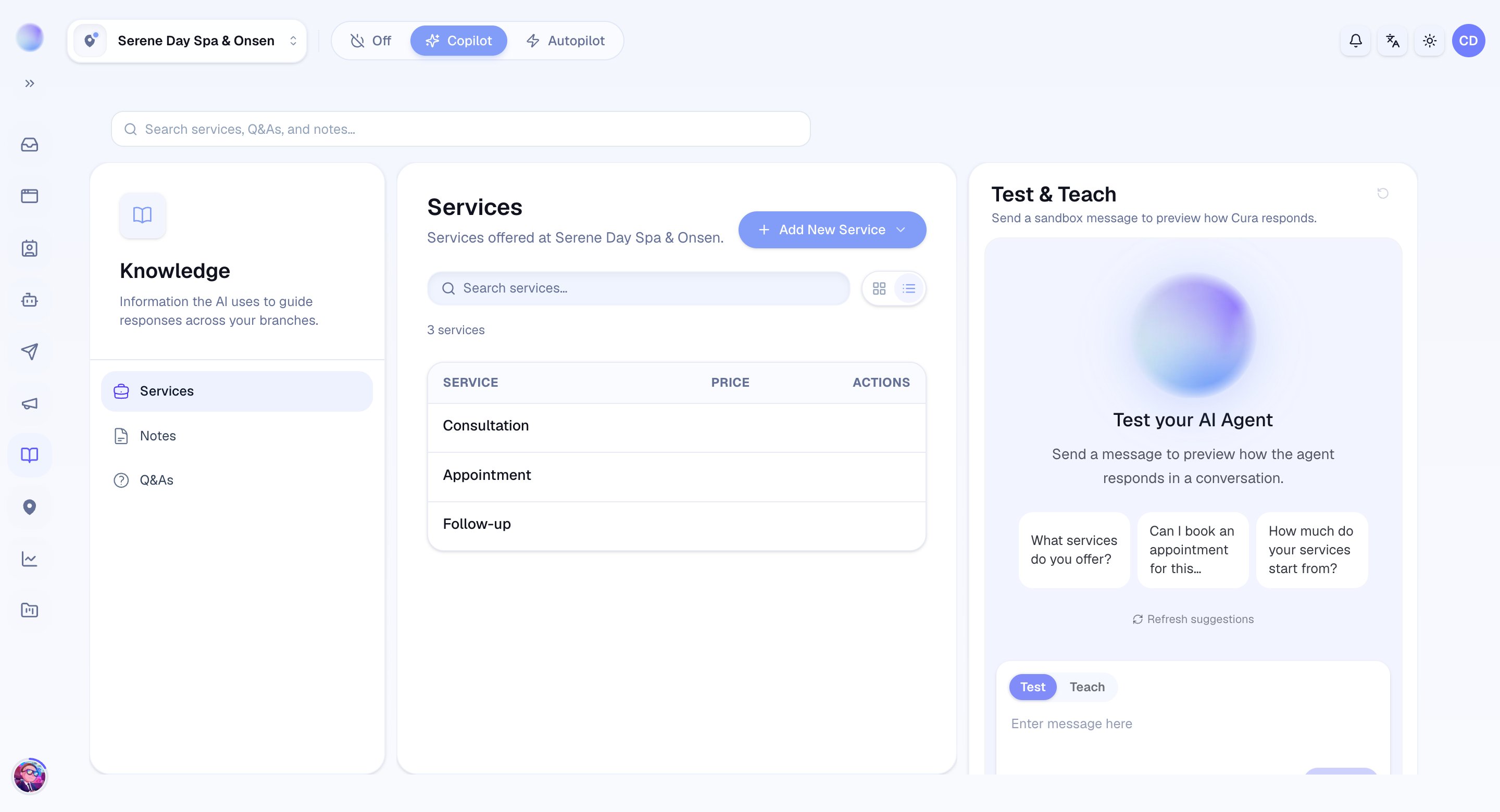
Test: preview how your AI answers
1
Switch the composer to Test
At the bottom of the panel is a small Test / Teach toggle. Make sure Test is selected.You’ll see a glowing orb and a few suggested questions drawn from your own services and FAQs — real things a customer might ask. Click any suggestion to drop it into the message box, or write your own. Click Refresh suggestions to see a different set.
2
Send a message as if you were the customer
Type a question in the box and press Send (or hit Enter). Your message appears as a customer bubble, and Cura starts drafting a reply — exactly the way it would for a real person on chat.
Test messages use the same AI, the same Services, FAQs, and guidance as your live conversations. What you see here is a faithful preview of what a customer would get.
3
Read the reply — and the two signals under it
When the reply lands, look just beneath it: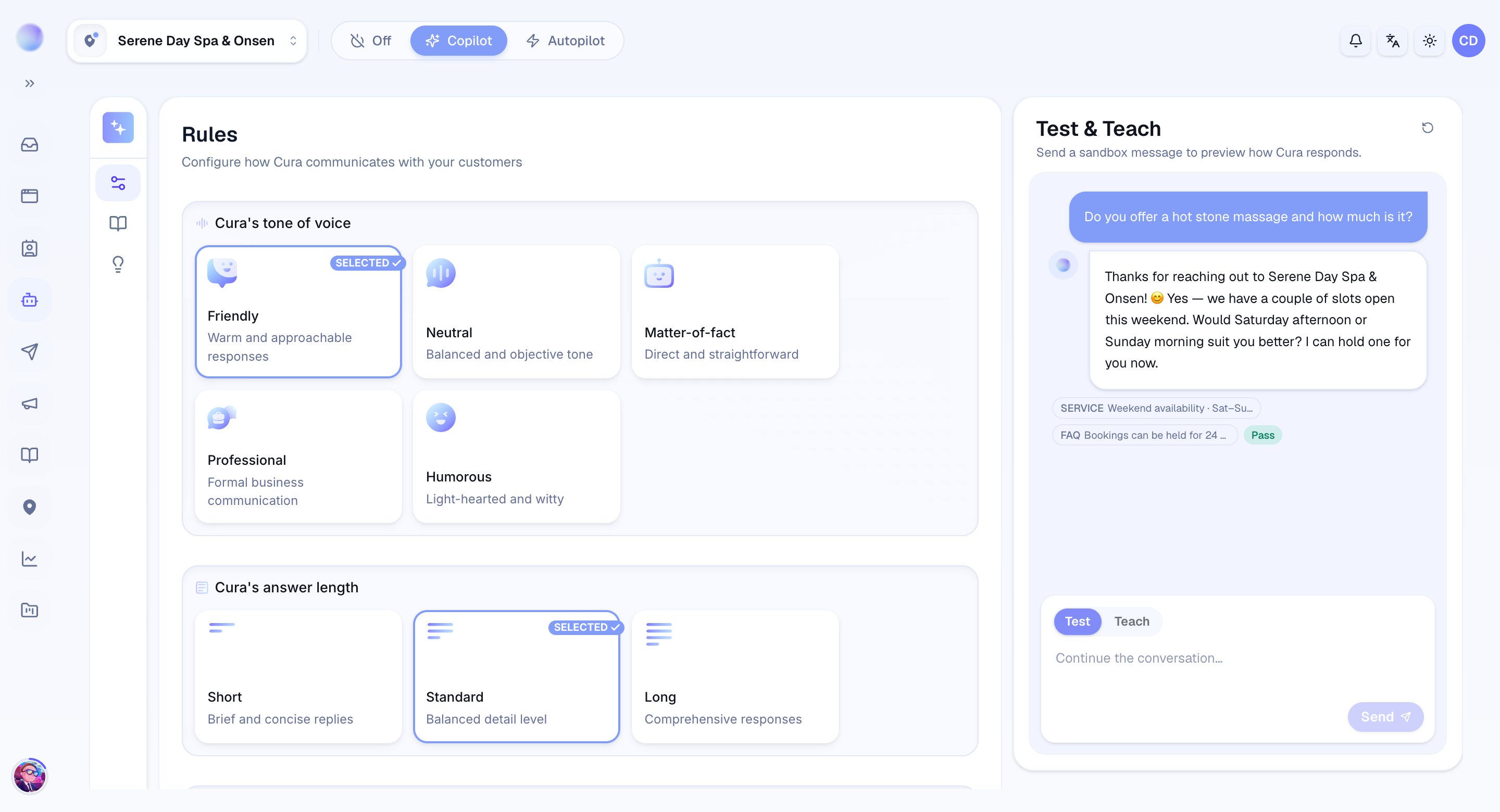
- Source chips — small tags like
SERVICEorFAQshow which piece of your setup the answer was based on. Hover to see the exact snippet. No chips can mean the AI answered from general guidance rather than a specific fact you gave it. - A quality check — a Pass or Flagged tag. Cura automatically grades its own reply; Flagged is your cue that something’s off. Hover to read why.
4
Keep the conversation going
Send another message to continue the same conversation — the AI remembers what came before, so you can test a back-and-forth (a follow-up question, an objection, a booking request).When you want a clean slate, click the Restart button (the circular arrow near the top of the panel) to start a fresh conversation.
Teach: close the gap when the AI gets it wrong
When a test reply is wrong, thin, or Flagged, you don’t have to leave the panel to fix it. Switch to Teach and give your AI the missing rule or fact in plain language.1
Switch the composer to Teach
Flip the Test / Teach toggle to Teach. The panel now invites you to “Teach Cura something new — a rule, a fact, a boundary.” A few example lessons appear to show the kind of thing that works well.
2
Write the lesson the way you'd brief a new team member
Type one clear instruction or fact. Short and concrete beats long and vague. For example: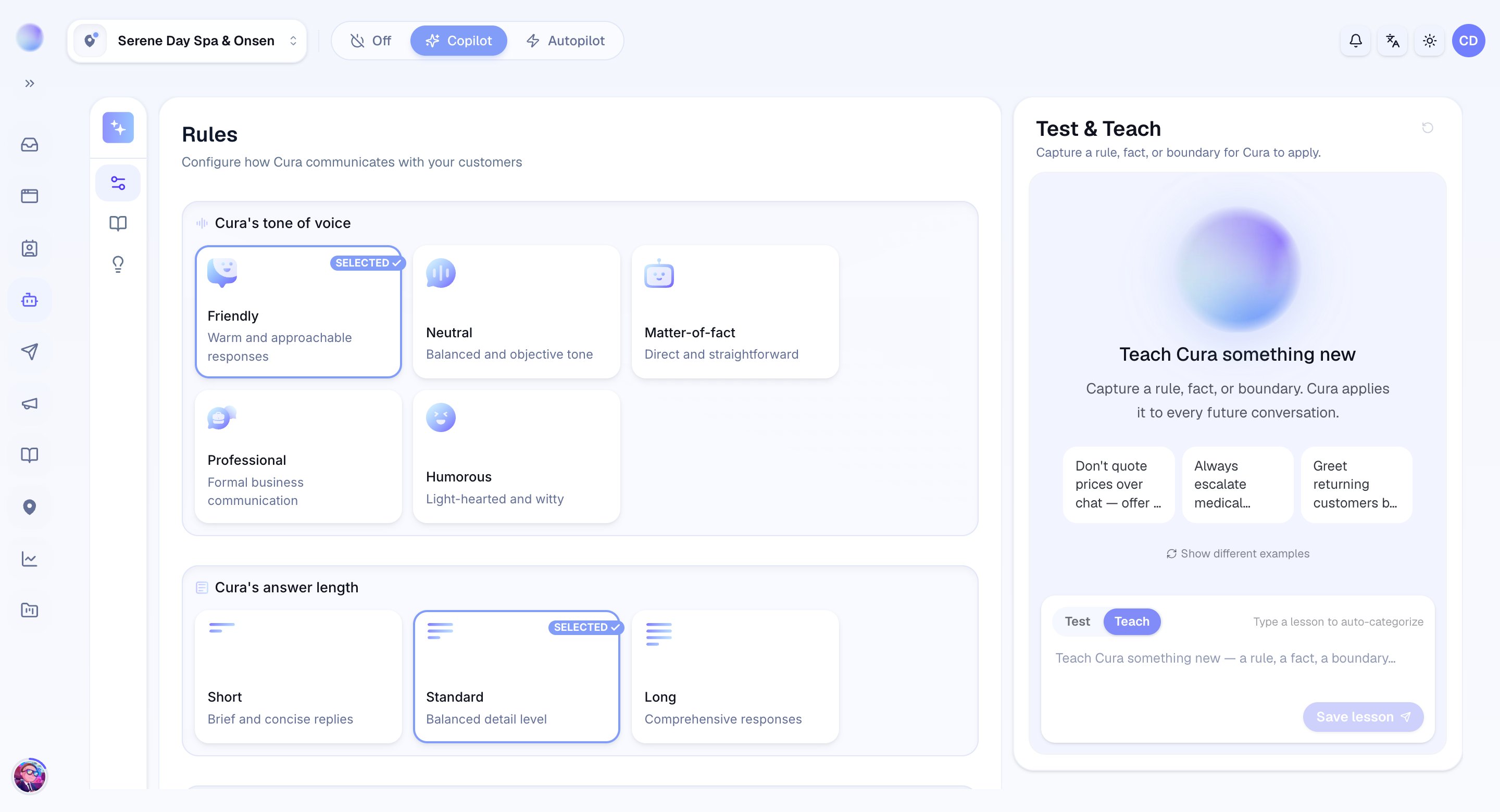
- “Don’t quote prices over chat — offer a free consultation.”
- “Always escalate medical questions to a human.”
- “Greet returning customers by name when you know it.”
3
Save the lesson
Click Save lesson. You’ll see “Saved — Cura will use this from now on.”The lesson is added to your AI’s guidance and applies to every future conversation, across your channels — not just this test.
Your AI has learned the lesson. Switch back to Test, ask the same question again, and confirm the reply is now right.
Teaching adds a rule, boundary, or fact to your AI’s guidance. It’s the right tool for how the AI should behave (“never do X”, “always say Y”). For structured facts, use the dedicated places instead: prices and treatments in Services, specific question-and-answer pairs in FAQs, and longer documents in your Knowledge Base.
The loop that gets your AI ready
- Test a realistic question.
- Spot a weak or Flagged reply.
- Teach the missing rule or fact.
- Test the same question again to confirm it’s fixed.
Troubleshooting
- Can’t see the panel? It’s Admin/Manager-only and part of the AI Agent area. On narrow screens it hides behind the floating Test AI Agent button — tap that to open it.
- Reply taking a while or showing a warning? A test can occasionally time out. Try sending again, or shorten the message.
- Suggestions look generic? They’re generated from your Services, FAQs, and guidance. Add more of those and the suggestions — and your AI — get more specific. See Build your Knowledge Base.