

Before you begin
- Open a conversation in the Inbox.
- Private notes work whether the conversation is handled by you, a teammate, or the AI.
1
Switch to Private Note mode
Above the message box is a toggle with two options: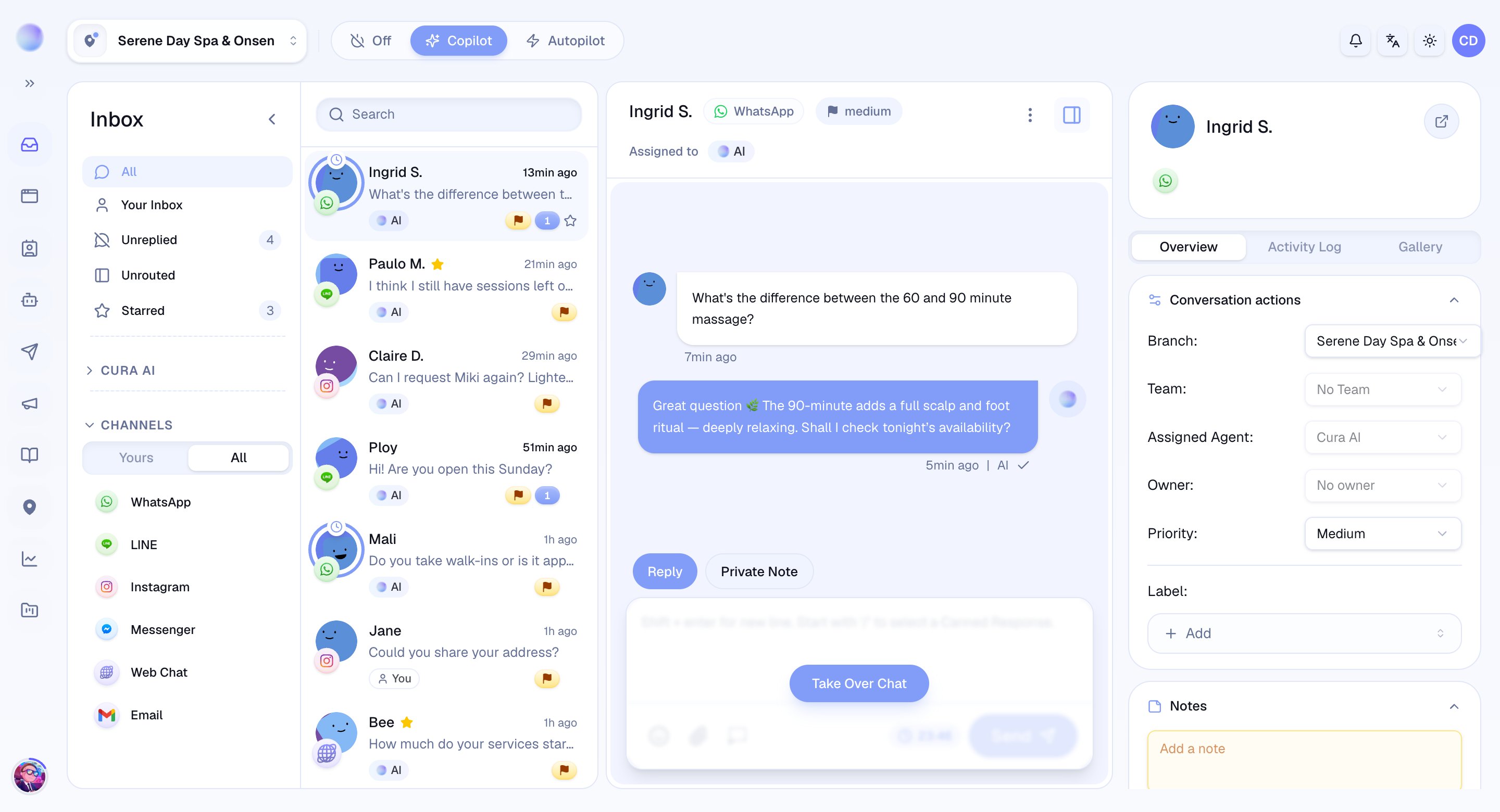
- Reply — goes to the customer.
- Private Note — stays internal.
2
Write your note
- Type your note as you would any message.
- Notes appear in the conversation history, styled differently from customer messages so everyone can tell them apart at a glance.
You’ve left a private note — it’s saved in the conversation for your team and invisible to the customer.
3
Use notes for clean handovers
Private notes shine when more than one person touches a conversation.
- Before assigning a conversation to a teammate, drop a note with the context they’ll need.
- Record what was promised, what’s pending, or anything the customer mentioned that the AI wouldn’t know.
Troubleshooting
- Worried a note went to the customer? Private notes are visually distinct in the history. If a message shows as a normal reply, it was sent — check the toggle next time.