

Before you begin
- Open a conversation in the Inbox that’s currently handled by your AI.
- Taking over affects only that single conversation — never your other chats or channels.
1
Take over the conversation
When the AI is handling a conversation, the message box shows a Take Over Chat button instead of letting you type right away.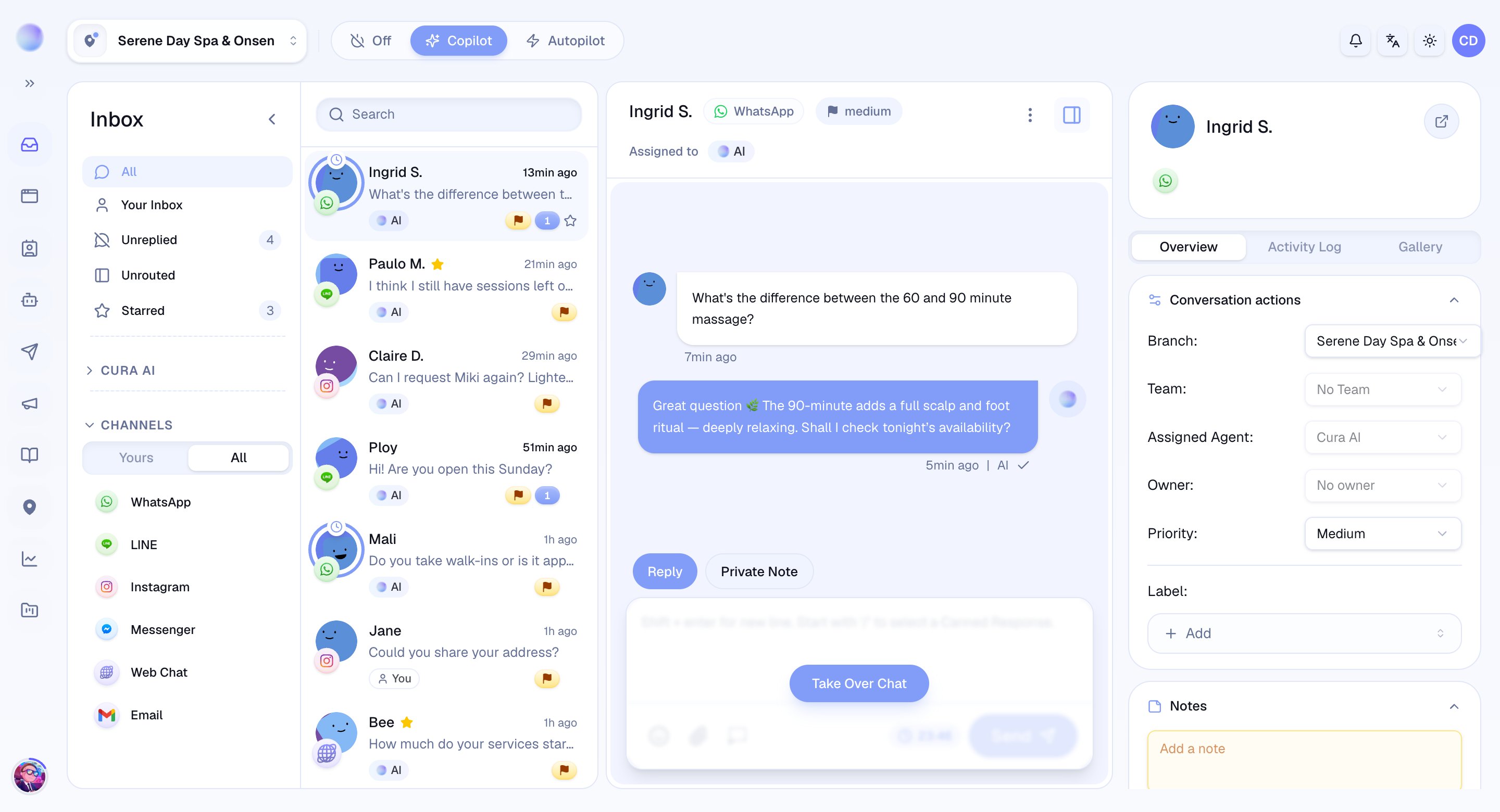
- Click Take Over Chat. The AI steps aside immediately, and you become the handler.
- The conversation now shows that a person is in control.
You’re now in control of this conversation. The AI will not reply here until you hand it back.
2
Reply as yourself
Once you’ve taken over, the message box is yours. Type your reply, add a saved reply with
/, or attach a file — just as you would in any conversation.Taking over is per-conversation. It never switches your AI off for other customers or channels — they keep getting instant answers.
3
Hand back to the AI
When you’re done and happy for the AI to resume, hand the conversation back.
- Reassign the handler to your AI. In the conversation’s Conversation actions (in the details panel), set the Assigned Agent back to Cura AI.
- The AI resumes handling the conversation from that point.
You’ve handed back — your AI is in control again and will respond to the customer’s next message.
Approve a draft in Copilot mode
Full take-over is one way to step in. When your workspace Mode is set to Copilot, there’s a lighter one: instead of sending on its own, Cura writes a suggested reply and pre-fills it straight into your Reply box for you to approve.1
Read the suggested reply
When a customer writes in, Cura’s draft appears as editable text in the Reply box of that conversation. Above the box, small chips show which Service or FAQ Cura drew on, so you can see where the answer came from at a glance.
2
Edit if you want to
If the draft is good as-is, leave it. To change a word, a price, or the tone, just edit the text — the moment you start typing, a small edited pill appears so you know you’ve changed it from Cura’s original.
3
Send it — or set it aside
- Send: click Send. The reply goes to the customer in their own channel, exactly like a message you wrote yourself.
- Don’t send: clear the box or reply in your own words instead. Nothing is delivered until you approve it.
Only the replies you approve ever reach a customer — that’s the promise of Copilot mode.
Approving a Copilot draft is not the same as taking over. The draft lands in your Reply box automatically because the whole workspace is in Copilot mode — you don’t need to press Take Over Chat first. For the full picture of Copilot, see Draft mode (Copilot).
Get a one-off AI draft
Even when your workspace isn’t in Copilot mode, you can ask Cura for a single suggested reply in any conversation. Look for the AI Draft button (a sparkle icon) in the composer — press it and Cura writes a suggested reply into your Reply box for you to review, edit, and send. It’s handy when the Mode is Off or Autopilot but you’d still like a hand with a tricky message, or when a chat is assigned to a teammate and you want to help without commandeering it.There’s a short cooldown between AI Draft requests, so give it a few seconds before asking for another. Cura needs a customer message to draft from, so use it after the customer has written in.
Troubleshooting
- Can’t hand back to the AI? The AI may be unavailable for that conversation — for example, AI is switched off for that channel or for your organization. The selector will tell you why.
- AI didn’t reply after handback? It responds to the next incoming message; it won’t re-answer messages you already handled.