

Before you begin
- You’ll need access to the CRM.
- That’s it — Segments come ready to use; there’s nothing to set up.
A Segment is automatic — Cura decides who’s in it based on a rule, and membership refreshes on its own. A List is hand-picked — you choose who’s in it. Reach for a Segment when the group follows a rule.
1
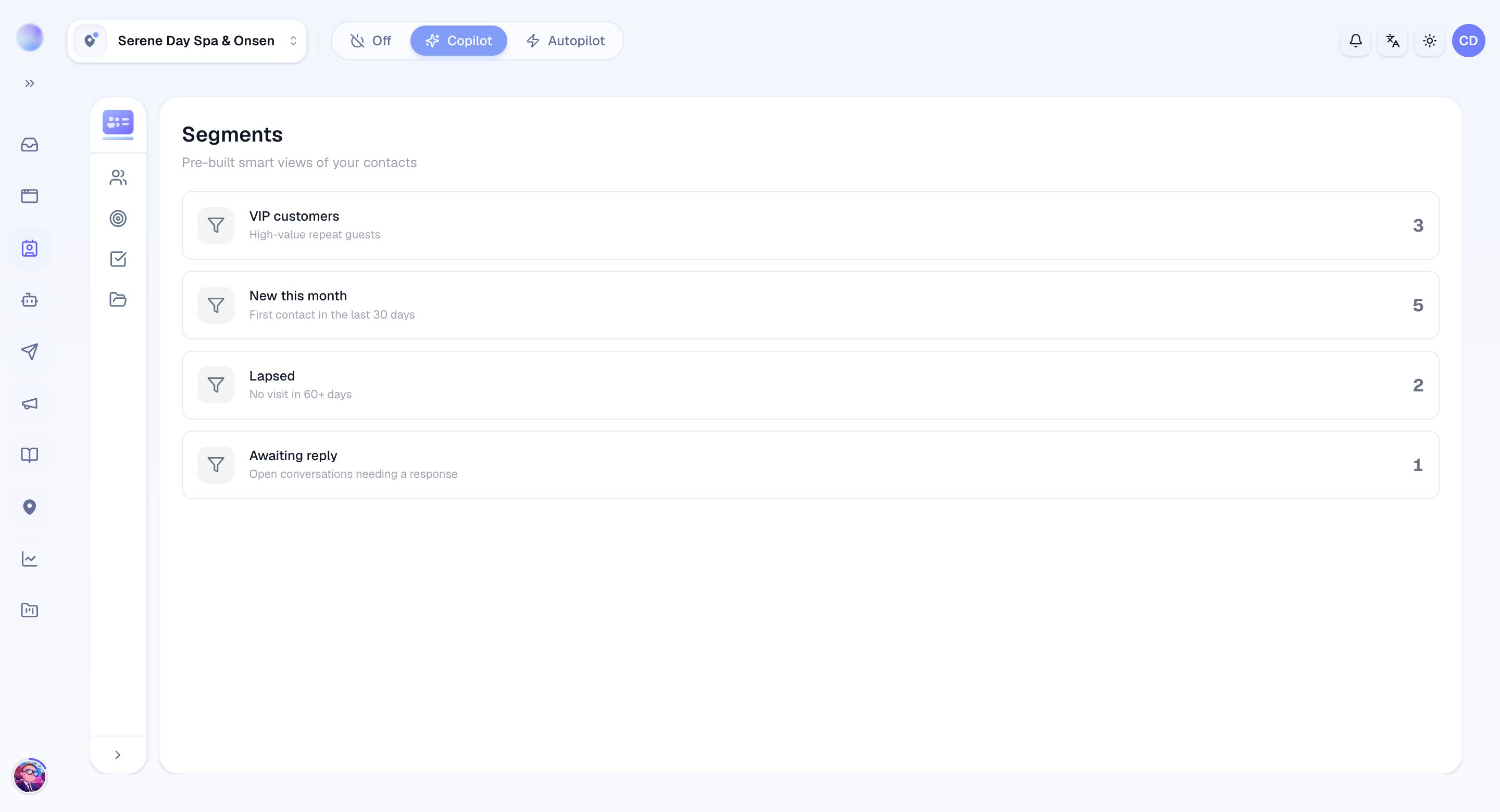
Open Segments
- Go to the Segments view in the CRM. You’ll see each Segment as a card with its name and a live count of how many contacts match right now.
2
Know what each Segment shows
Cura comes with these smart views:
- Engaged This Week — contacts with activity in the past 7 days.
- New This Month — contacts created in the current month.
- Dormant Contacts — no activity in the past 30 days.
- Has Open Deal — contacts with at least one active deal.
- VIP Contacts — contacts marked as VIP tier.
- Unassigned — contacts with no owner.
- Has Open Task — contacts with a pending task.
3
Open a Segment and act
- Click a Segment to see the contacts inside it.
- From there, open any contact to follow up, reassign, or move a deal forward.
You can now zero in on a meaningful group instantly — no manual sorting required.
Putting Segments to work
- Start your day with Engaged This Week to catch warm customers.
- Win back Dormant Contacts with a check-in message.
- Clear out Unassigned so every customer has an owner.
- Prioritize Has Open Deal and Has Open Task to keep momentum.